Core Admin Functions
Last updated: October 12, 2026
User Administration
The Admin Homepage is where administrators create, edit, and manage every account on the Worksmith Workforce platform. Think of it as the master roster of your organization — every person who can log in, every role they hold, and every location they're assigned to lives here.
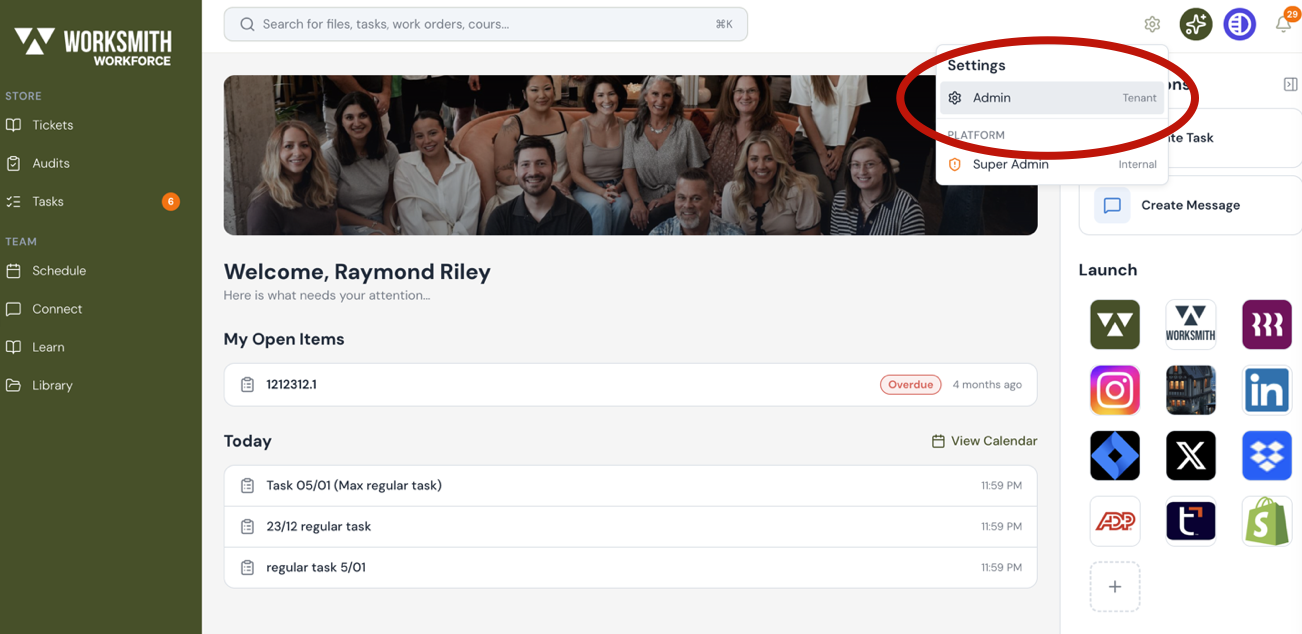
Upon selecting Admin from the top right gear icon,
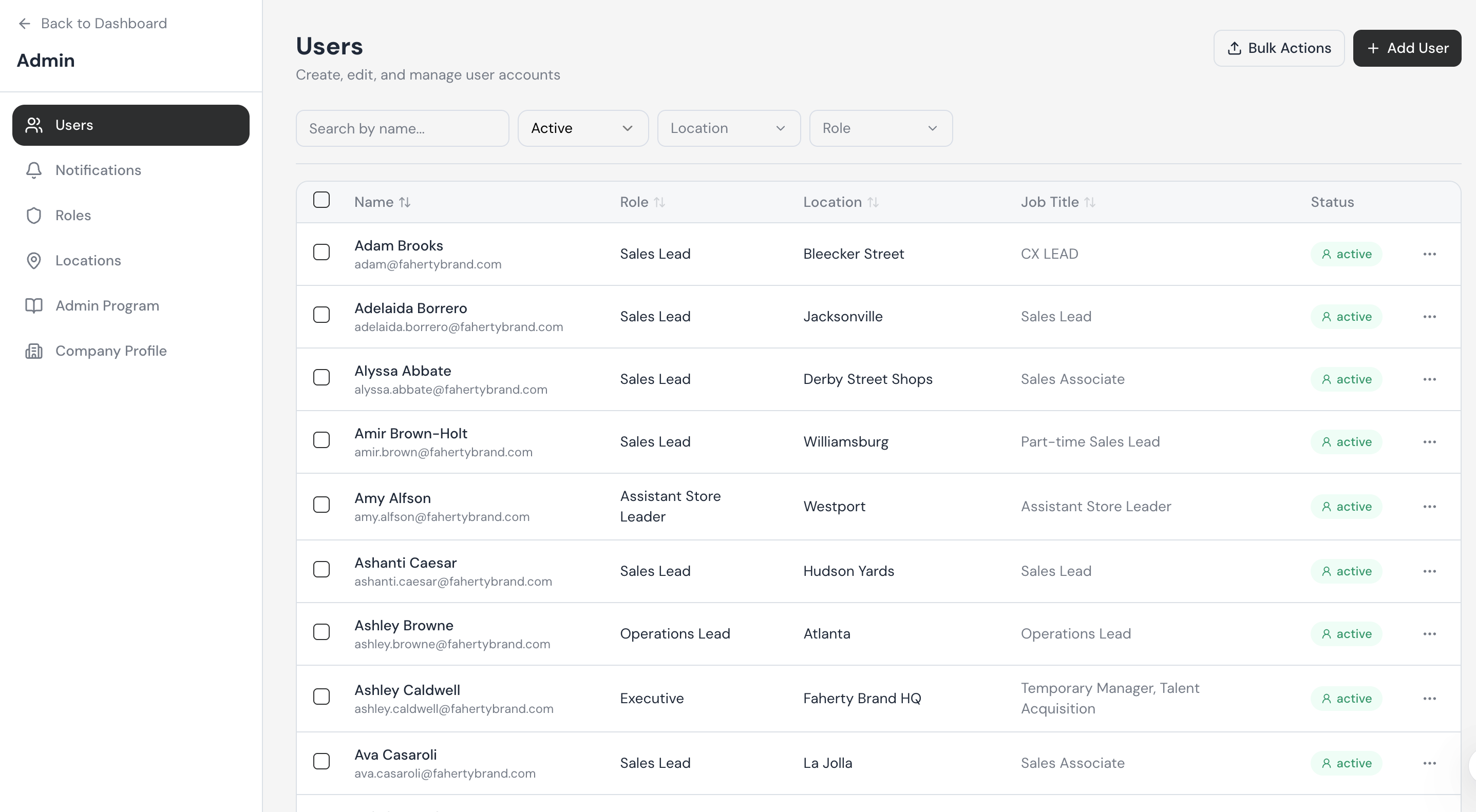
When you open Admin → Users, you'll land on a searchable, sortable table of every user in your company. Each row represents one person and shows their key account details at a glance:
Name & Email — the user's display name and the email address tied to their login
Role — the system-level role that controls what they can see and do in the platform (for example, Sales Lead, Assistant Store Leader, Operations Lead, Executive)
Location — the store, region, or home base the user is assigned to
Job Title — the user's actual job title within your company, which may differ from their platform role (for example, a Sales Lead role with a Part-time Sales Lead or CX Lead job title)
Status — whether the account is currently active or inactive
Finding the user you need
The top of the table includes four ways to narrow the list down:
Search by name — type any part of a user's name to jump straight to them
Active / Inactive filter — switch between currently active accounts and deactivated ones
Location filter — show only users assigned to a specific store or region
Role filter — show only users in a specific platform role (e.g., every Sales Lead across the company)
You can also sort the table by clicking the arrows next to any column header — useful for pulling up users alphabetically, by role, or by location.
Adding A User
Log in and click the gear icon in the upper right corner of your homepage.
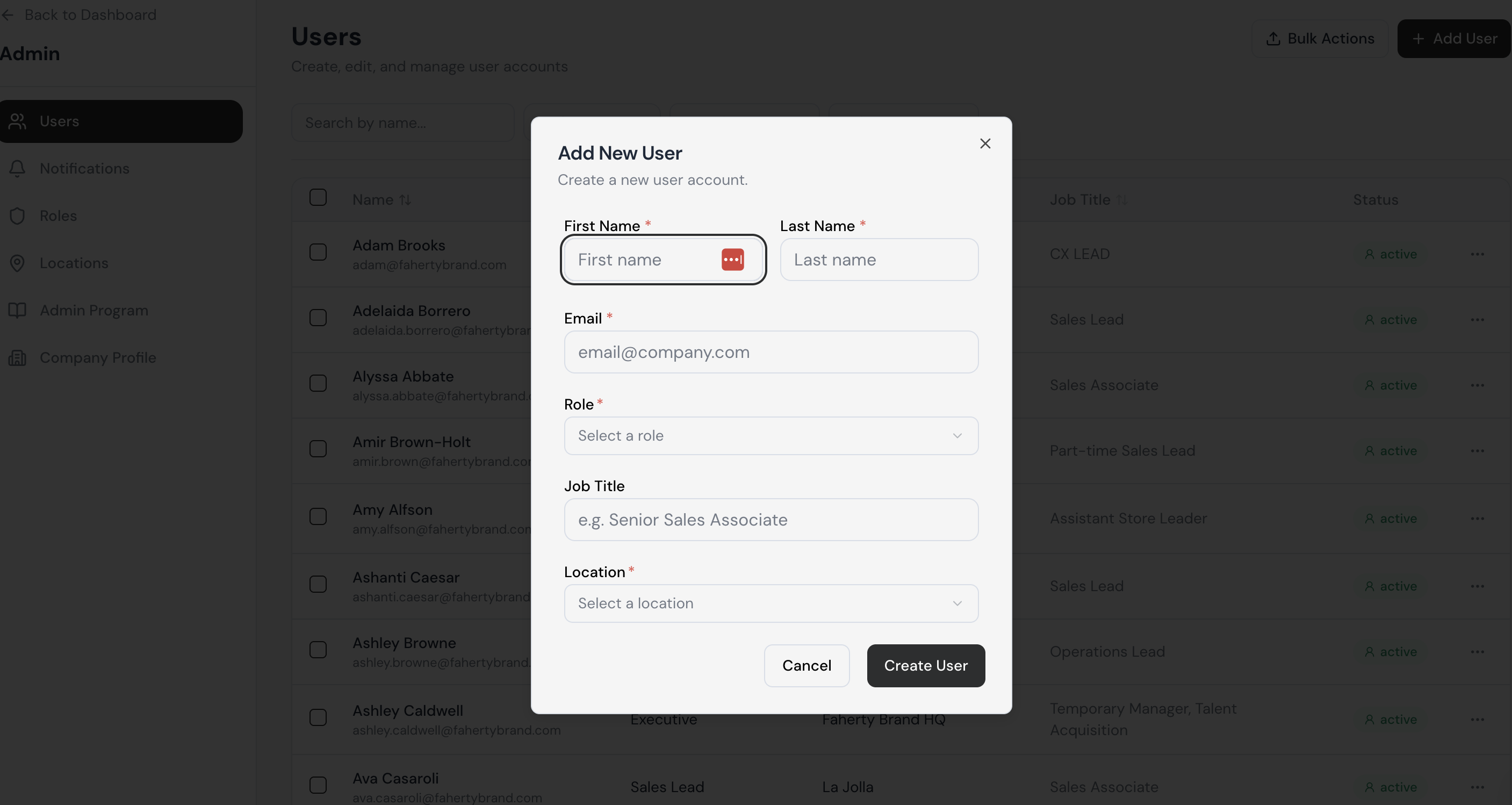
Selecting “Add New User” provides you with the user creation form as pictured above. All fields are required.
A user can only have a single location and a single role, which are provisioned in the Role & Location Administration sections of the Admin panel.
Note: User Role is their system role, which defines the courses and application permissions. Position Title is their specific job title. For example, a User Role could be Support Center Manager, but the Position Title would be Marketing Manager. The Marketing Manager and the Finance Manager likely need the same permissions (User Role), but only differ in job title (Position Title).
Upon selecting “Create User”, the user will receive the new user activation email.
Editing a User

Edit details such as name, email, role, title, or location
If the user’s email address is updated, no notification will be sent to the user, however it does update their email immediately in our database.
If the user’s email has been changed, the user should be informed to login with their new email address. Their password will remain unchanged.
If the user has not yet set a secure password, they can/should request a Forgot Password link with the new email address from app.worksmith.com
Pressing save confirms any of the above actions.
Deactivating a User
From the table view, you can, you multi-select users and press "Deactivate". You can also per screenshot above, deactivate a user from within the Edit User screen.
Note: Users are never deleted within Worksmith Workforce, they are only deactivated. This terminates their access to the system, and removes their learning records from Analytics. Upon reactivation, these records are restored instantly.
Reactivating a User

Select the “Inactive” dropdown to display deactivated users and use the search bar to locate the desired user.

Check the box next to the user’s name and click Activate “1 User” in the bottom right.
To update user details before activation, select the user, make changes, then click Activate.
Click Save to confirm.
A Welcome Back email will be sent with instructions to set a secure password.
All previous course activity, profile photo, and user data will be restored.
Bulk Actions (Import)
You can also bulk import users for activation or deactivation.
Use the downloadable CSV, and ensure that the data in each cell is accurate.
The import will fail if the Role or Location defined in the CSV file does not match precisely what is listed in the platform.
Granting a User Admin Access

Upon logging in, click on the users layer and select the employee that you wish to give Admin access to.

Under “User Role” select “Platform Admin” from drop down and click “save”.
Role Administration

Administration
Every user requires a role, and a user can only have a single role. A user’s role provides access and permissions to the functions within the application. The permissions tree can be found above.
There are primary permission sets (Learn, Library, Admin, Analytics, Task Management, & Connect), and there are sub-permission sets that fall under a primary permission set. Permission definitions include:
Learn: This provides the Learn sidebar menu item, access to the learning dashboard, and ultimately access to the Learning Room.
Programs: This must be checked in addition to the specific courses that are to be assigned to users with the associated role. In the screenshot below, Programs is not expanded to show the list of available courses.
Program Builder: This must be checked in addition to the Program Content Library (which contains course content) and the Course Designer (which contains course outlines). These permissions are typically reserved for Admins or users that are in charge of Training & Development.
Library: This permission and the General Library sub-permission must be selected for users with the role to have access to the Library sidebar menu and the contents of the Library. For a user to have Create/Edit/Delete permissions in the General Library, the primary Admin permission must be active.
Admin: This primary permission is required, and as previously mentioned triggers Create/Edit/Delete access on the Library. The sub-permissions relate to each layer within Admin, and can be tailored for various roles. For example, providing “User Administration” rights to some roles, but not full Admin rights.
Users (User Administration): The ability to create/edit/deactivate users.
Roles: The ability to create/edit/delete roles.
Locations: The ability to create/edit/delete locations.
Admin Program: The ability to adjust course pre-requisites.
Company Profile: The ability to adjust the company logo and branding colors.
Analytics: This primary permission relates to the Analytics sidebar menu item, and each sub-permission refers to the individual layers of Analytics visible from the top horizontal submenu.
Task Management: This primary permission relates to the ability to view tasks. Task visibility is dictated by the user’s location. This permission on its own does not include the ability to create, edit, delete, approve, or decline tasks.
Task Create/Delete: This sub-permission includes the ability to create, edit, and delete tasks, but is constrained by the user’s location. This sub-permission also includes the ability to approve or decline tasks, in addition to being an eligible Watcher on tasks that are created.
For example, if the user resides in a store, they will only be able to create tasks within their store, and edit or delete their own tasks.
Whereas a user in the Headquarters will be able to create, edit, delete, approve, or decline tasks system-wide.
Connect: This primary permission provides users with the role access to Connect from the left sidebar menu. It does not provide them with any specific channel access, as channel access is managed by role within the Connect Channel settings.
Connect: Create/Delete: This permission effectively enables the user to be a Connect Admin. They can create, edit, or delete channels, and will have access to every channel by default. This is a special permission usually reserved for a small number of users. They are responsible for initial channel creation and setup.
Location Administration
Adding a Location

All location management (create, edit, delete) and location hierarchy is established in the Locations layer of the Admin panel. Each user must be associated with a location, and can only be associated with a single location.
All fields are required, and the hierarchy is:
Headquarters (this should be a single location)
Region (there can be multiple regions, and a region’s parent location should be a Headquarters location)
District (there can be multiple districts, and a district’s parent location should be a Region)
Store (there can be multiple stores, and a store’s parent location should be a District)
Selecting “Add Location” will pop up the location creation form. All fields are required. Most of the fields are self-explanatory, but the following are critically important:
Timezone: This will relate to task due dates. The correct timezone must be linked to the right store location.
Parent Location: This will ensure the location hierarchy is accurate and mapped properly.
Location Type: The options include Headquarters, Region, District, Store, or Department. This will also ensure the location hierarchy is accurate and mapped properly, which propagates across all Worksmith Workforce services including Task Management and Analytics.
Editing or Deleting a Location
It is common in retail that location hierarchy is restructured based on expansion or contraction. This involves editing locations, their parent locations, and in some cases deleting locations.
When deleting a location, please ensure that all active or inactive users associated with that location are moved to another location.
Notification Administration

In the Admin layer you will need to determine the type of notifications to set up based on the user’s role.
Your notification preferences are configured to keep you informed about activity across the platform.
Notification Channels: Task notifications can be received via 3 methods:
In App: Alerts appear within the web application.
Email: Notifications are sent to the users registered email address.
SMS: Notification updates are sent via text message.
This section outlines how notifications are triggered for direct and channel-based communication within the platform.

Notification types are defined as follows:
Frozen Channel – Notification is triggered when a channel is frozen (i.e., no further messages can be posted).
Unread Channel Messages – Alert is generated when unread messages exist in any subscribed channels.
User Mentioned – Notification is triggered when an @mention is made in a message.
User Messaged – Notification is triggered when a direct message is received.
Connect Notification Workflows
Connect: Discover Connect Here
Connect Workflow | Delay for Email (Minutes) | Batch for Email (Minutes) | Email Sent (If Not Read In-App Prior) |
Frozen Channel | 0m 10s | 5m 0s | 5m 10s |
Public Channel Message | 5m 0s | 25m 0s | 30m 0s |
User Mentioned | 0m 10s | 2m 0s | 2m 10s |
User Messaged | 5m 0s | 3m 0s | 8m 0s |
Connect Notification Workflows
Delay & Batch Definitions:
Delay for Email: The minimum elapsed time after an event (e.g., message, mention) before the system evaluates whether the user has read the message in-app. If not read, the event is queued for potential notification delivery.
Batch for Email: The time frame during which multiple notification-eligible events of the same type (e.g., public messages, DMs) are batched into a single outbound email. This reduces email volume and enhances user experience by grouping related updates.
Email Sent: The cumulative duration from the moment the triggering event occurs to when the notification email is sent—only if the user has not engaged in-app. This is the final point of contact for that specific event in the absence of in-app interaction.
Task Management Notification Workflows
Tasks: View Tasks Here
Task Management Workflow | Delay for Email (Minutes) | Batch for Email (Minutes) | Email Sent (If Not Read In-App Prior) | Recipient |
Task Created | 0d | 30m 0s | 30m 0s | Store User(s) |
Task Comment | 0d | 5m | 5m | Store User(s), Creator, Watcher(s) |
Task Comment Mention | 0d | 5m | 5m | Store User(s), Creator, Watcher(s) |
Task Comment Reaction | In-App Only | In-App Only | In-App Only | Commenter |
Task Due Reminder | Automated | Automated | Automated | Store User(s) |
Task Submitted | 0d | 30m 0s | 30m 0s | Creator, Watcher(s) |
Task Approved | 0d | 30m 0s | 30m 0s | Store User(s) |
Task Declined | 0d | 30m 0s | 30m 0s | Store User(s) |
Weekly Task Report | Automated | Automated | Automated | User with Task: Create/Delete permission |
Task Management Notification Workflows
Program (Course) Administration

Should you wish to apply course pre-requisites, please visit the Admin: Programs part of the admin panel.
Navigate to the course, and select “Add Prerequisites”. You can define a course to serve as a prerequisite and the specific percentage the course must be complete until the selected course is able to be accessed.
Course prerequisites apply to any user with access to the given course(s).
There can be multiple course prerequisites, which will be listed in the popup.
When a user attempts to access a course with a course prerequisite that is not fulfilled, they will receive an informational popup advising them to complete the necessary prerequisite.