Login & Setup
Last updated: September 30, 2026
Introduction
Worksmith Workforce is a single platform for retail operations and learning.
System Requirements
|
Step 1: Setting a Secure Password

As an initial admin user, you will have received an activation email from Worksmith Workforce Support. Please check junk or spam in the event this email is not in your main inbox. After clicking the link, you will be prompted to set a secure password.
Step 2: Initial Login & Setup
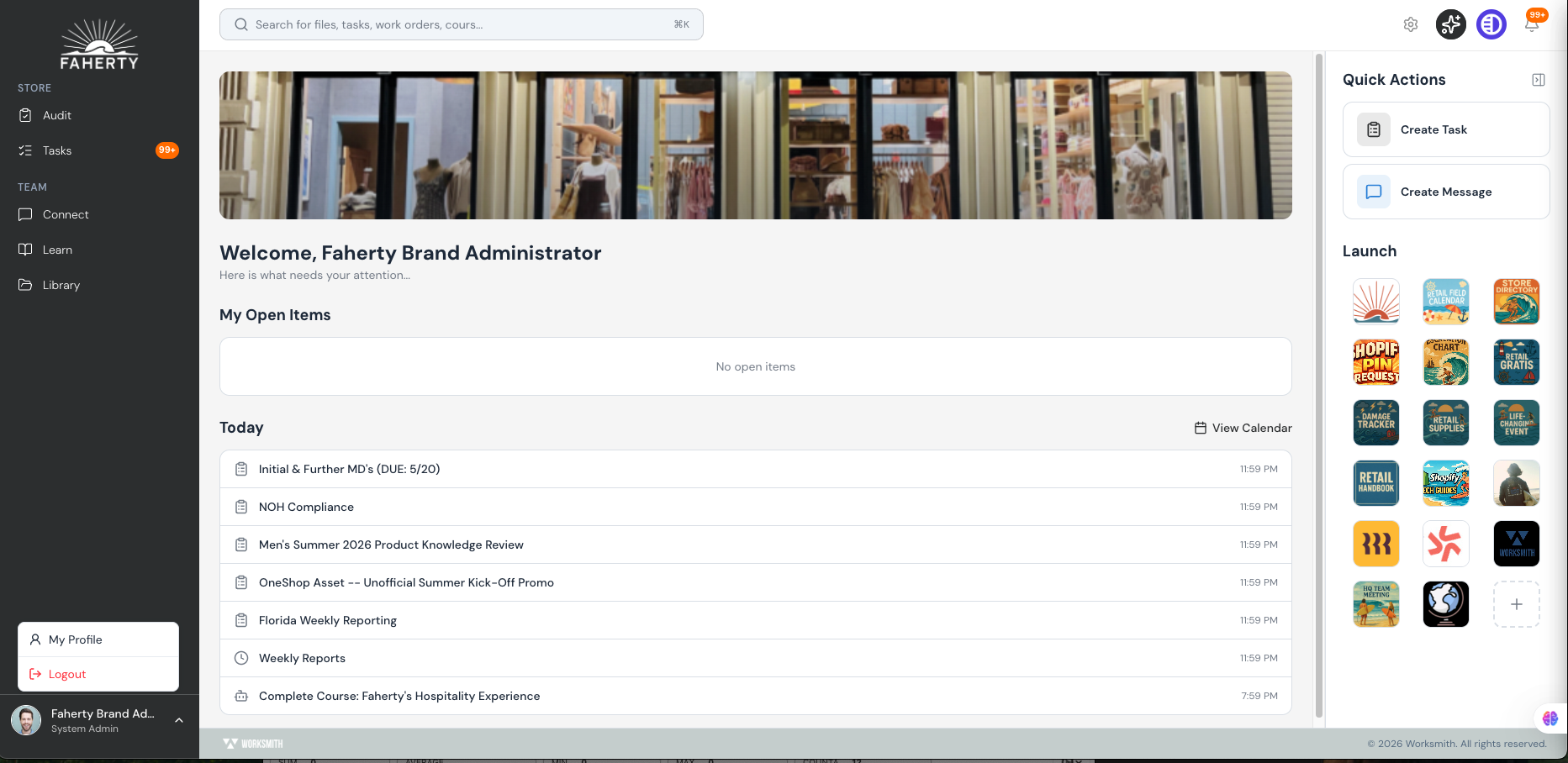
Upon logging in with your email address and password, you will land on your Company’s Home Dashboard. From here, you should click "My Profile”, where you will be able to set a profile photo, and choose whether to enroll your phone number in SMS notifications.
Step 3: Home Dashboard Setup
There are a few customizable components that are present within the Home Dashboard:
Home Page Banner Image: selecting the pencil icon enables you to edit this image. The recommended aspect ration is 10:1.
Home Page Launch Icons: create custom shortcut links with customizable thumbnails to web-based destinations that your team access frequently- centralizing information and access.
View Calendar: Today section of the Home Dashboard surfaces every task, course, and event due that day, sorted by deadline. Selecting View Calendar in the top-right corner expands this view into a full calendar so users can see what's coming up across the week or month — making it easy to plan ahead instead of only reacting to what's due today.
Step 4: Company Branding
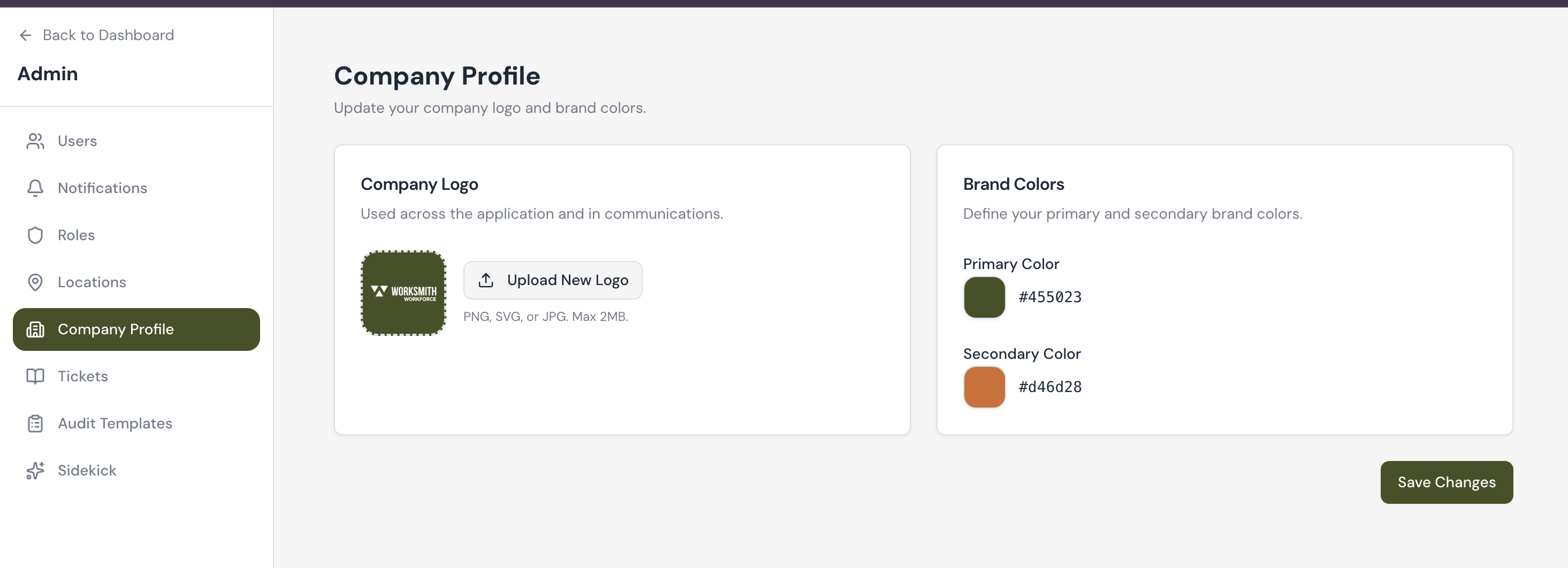
Worksmith Workforce wants your brand’s uniqueness and aesthetics to shine through via the platform. In addition to the branding available on the Home Dashboard, you can also personalize a primary and secondary color. To customize this, please visit the Admin section of the platform by clicking on the top right gear icon, and select Company Profile from the left side bar.
You have the option of uploading your company logo and defining your primary and secondary company colors.