Log In & Set Up
Last updated: September 30, 2026
Worksmith Workforce is a single platform for retail operations and learning.
System Requirements
Requirement | Details |
Operating System | Windows 10 or higher, macOS 10.14 or higher |
Browser | Latest versions of Chrome, Firefox, Safari, or Edge |
Internet Connection | Stable broadband connection |
Peripherals (Optional) | Mobile camera for task photo requirements |
Step 1: Setting a secure password
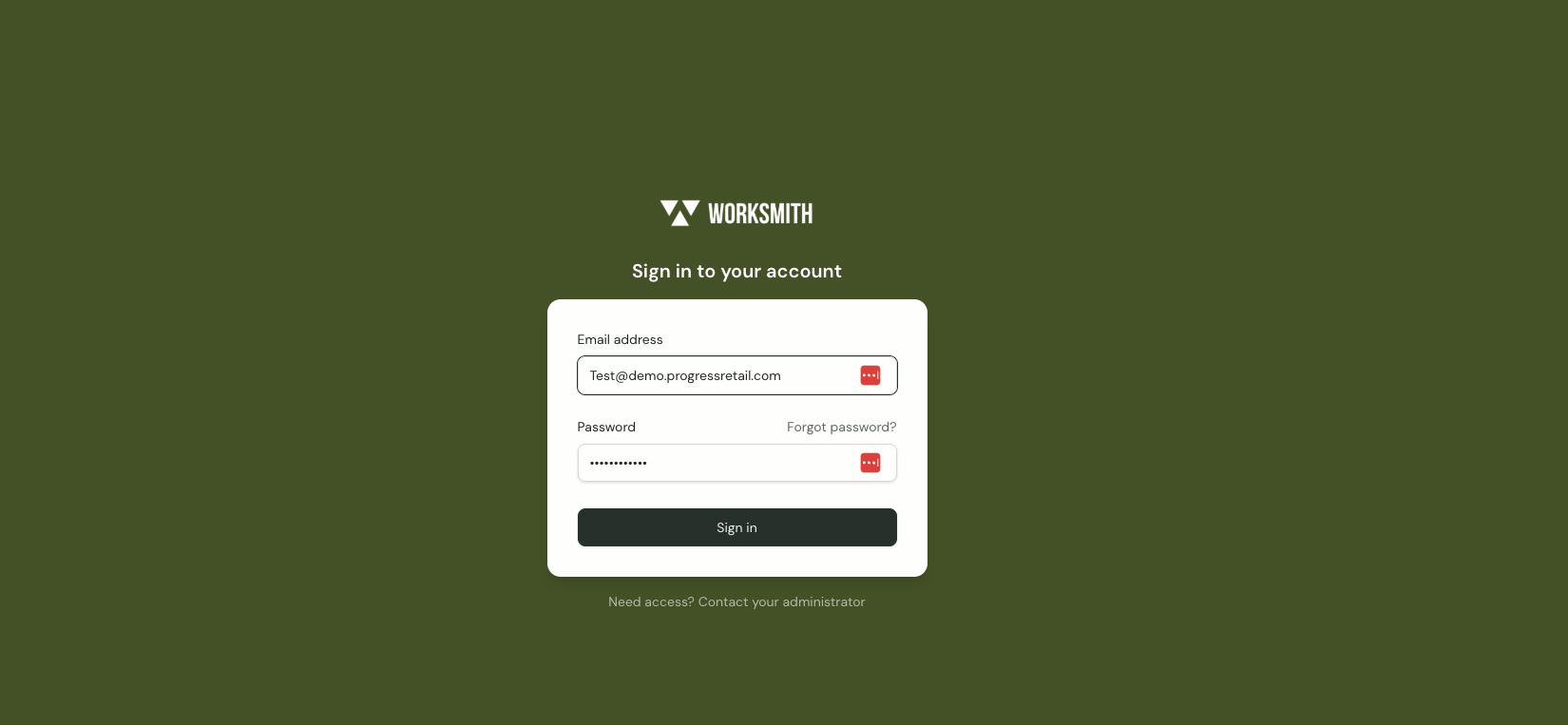
As an initial admin user, you will have received an activation email from Worksmith Work Support. Please check junk or spam in the event this email is not in your main inbox.
After clicking the link, you will be prompted to set a secure password. This password expires for security reasons after 5-minutes.
Should you need to request an additional link, please do so at app.worksmith.com. Please check junk or spam for this email. The email entered to receive the link must match the email your account was setup with.
Any additional support questions can be emailed to our technical support email: workforce@worksmith.com.
Step 2: Initial Login & Setup
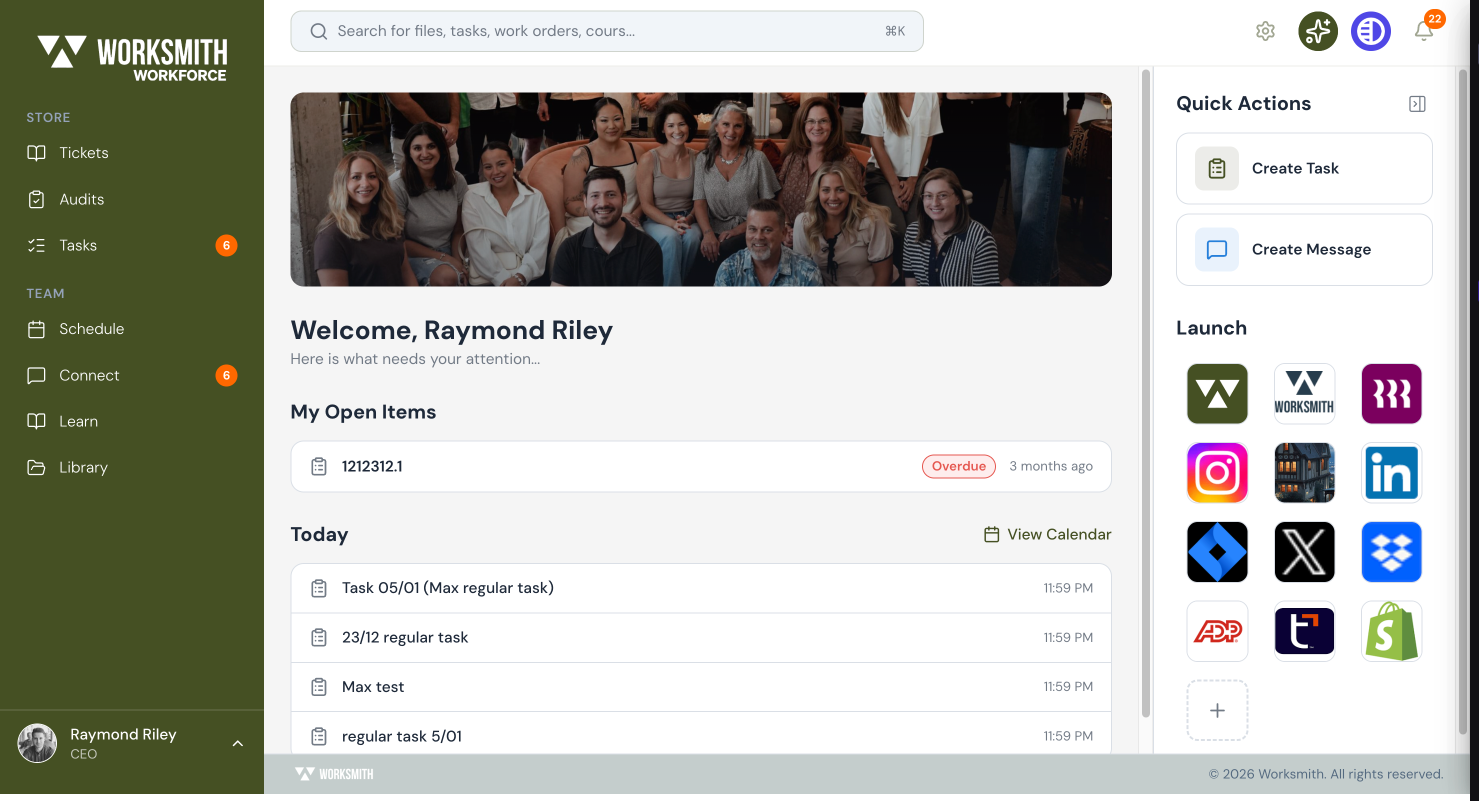
Upon logging in with your email address and password, you will land on your Company’s Home Dashboard.
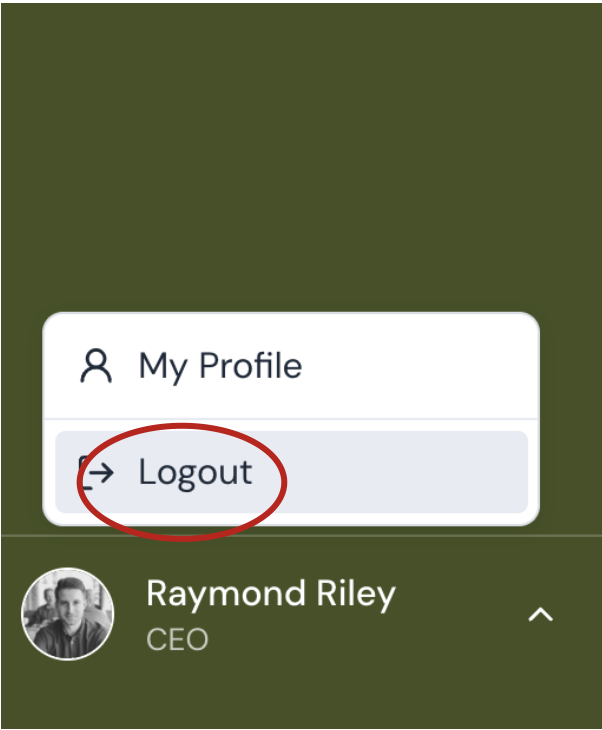
From here, you should click "My Profile”, where you will be able to set a profile photo, and choose whether to enroll your phone number in SMS notifications.