Notification Overview & Filtering
Last updated: August 25, 2026
Where to Find Your Notifications
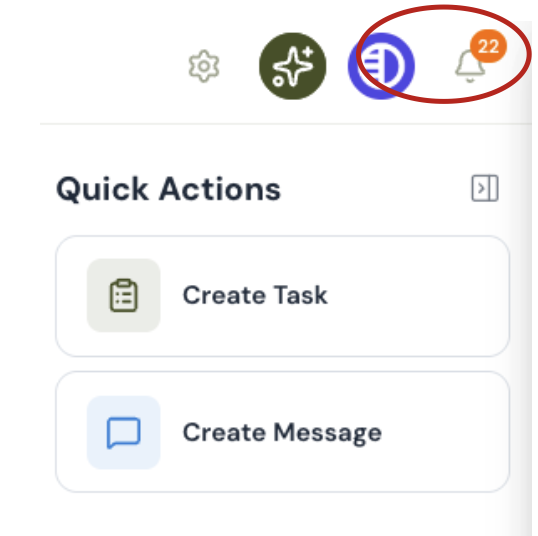
Look for the bell icon in the top navigation — that's your Notifications panel. Open it and you'll see a running feed of recent activity: who did what, which store it happened at, and how long ago.
Unread notifications show up front, with a count so you can see at a glance how much is waiting on you.
Filtering to Find What You Need
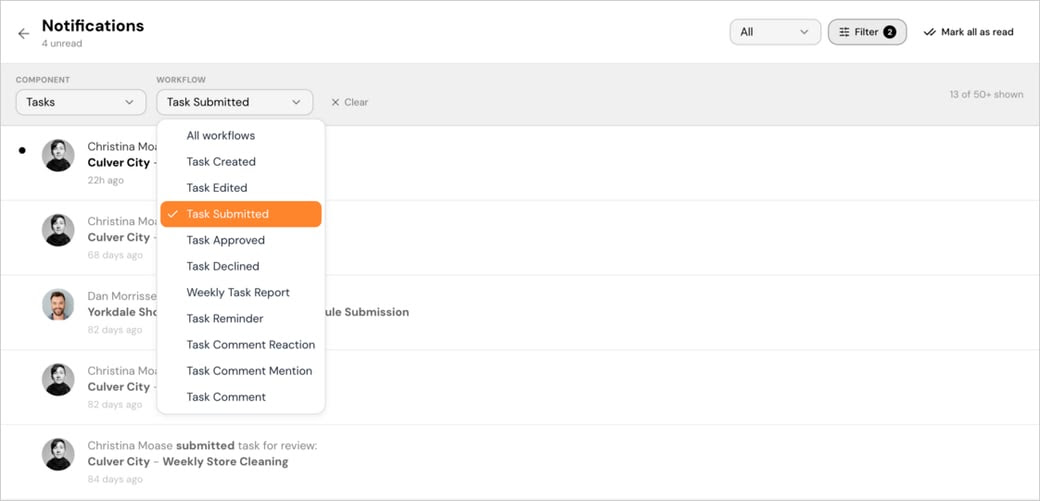
If you manage more than a handful of stores, your feed can fill up fast — and the one notification you actually need can end up buried under a dozen you don't. That's what the filter is for. You can narrow your feed by:
Component — jump straight to a specific part of the platform, for example, Tasks.
Workflow — get even more specific about what kind of task event you're looking for:
Task Created
Task Edited
Task Submitted
Task Approved
Task Declined
Weekly Task Report
Task Reminder
Task Comment Reaction
Task Comment Mention
Task Comment
You can combine both — say you only care about tasks waiting on your approval. Filter to Component: Tasks and Workflow: Task Submitted, and that's all you'll see. Clear the filter whenever you want your full feed back.
Managing Your Feed
Done reviewing a notification? Mark it as read, or clear everything at once with Mark all as read.
If you've filtered your feed, you'll see how many notifications are showing against the total available (e.g., "10 of 50+ shown") — so you always know whether you're looking at everything or just a slice of it.