Course Due Dates
Last updated: September 29, 2026
Course Due Dates are an integrated function between Worksmith Workforces Learning, Task Management, & Analytics components.
Course Due Dates are set within the Course Designer.
Course Due Dates trigger automated My Tasks within Tasks.
Course Completion & Course Status is synchronized across Analytics & My Tasks.
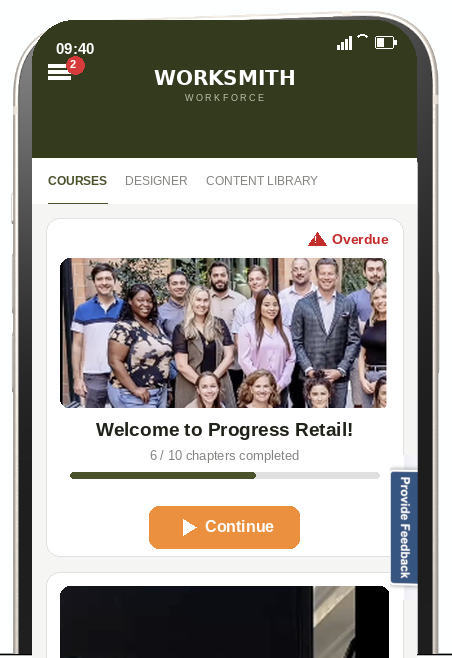
Overdue courses are indicated on Learn Dashboard.
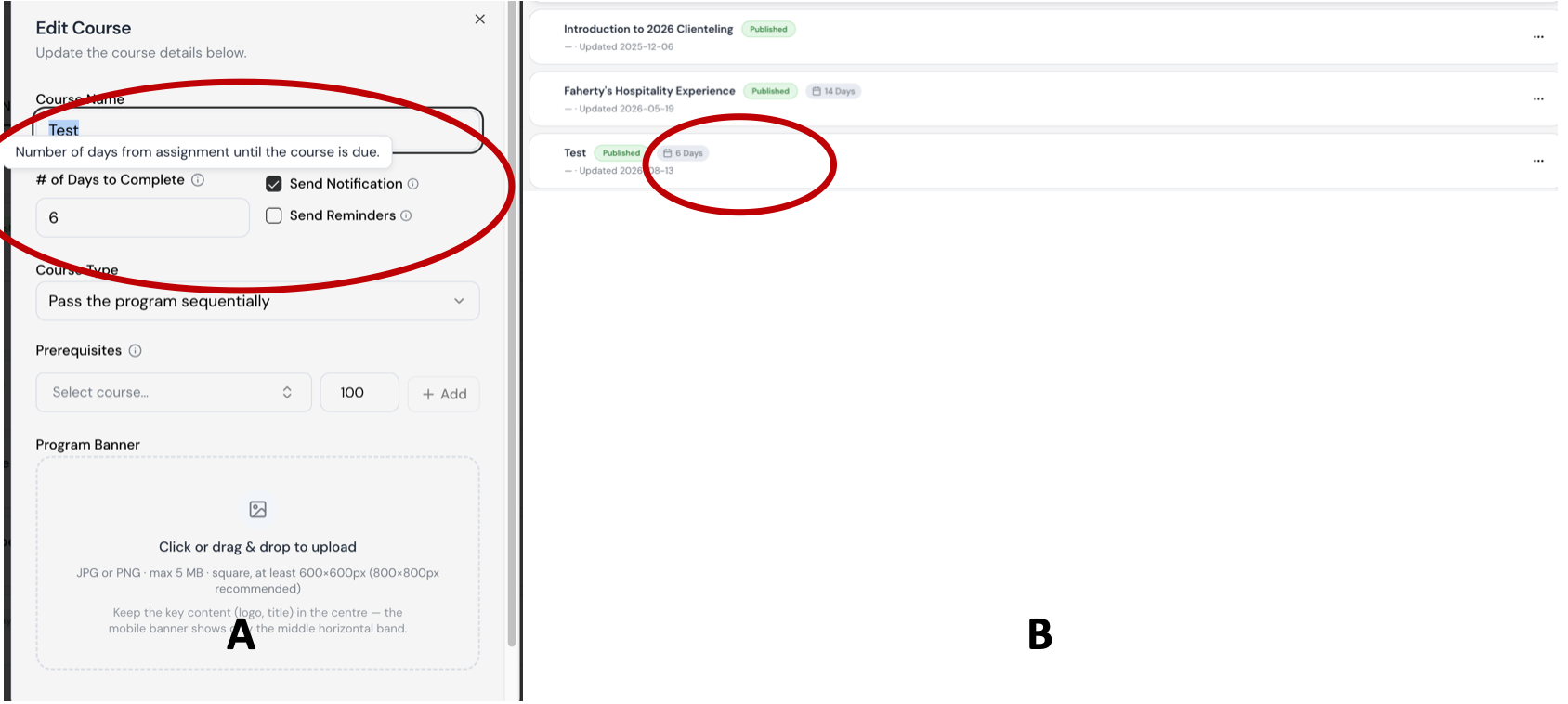
Course Due Dates: Step 1:
In the Course Designer, add or edit a course to designate the # of Days to Complete. (Image A)
As the tooltip indicates: “Set the days following the learner’s onboarding date when the course becomes due. If the learner changes role and new course(s) become available, the number of days is reset from the role change date. Set to 0 if no due date is required.”
Your designation will be reflected in the Course Designer list. (Image B)
Access Admin: Roles and edit the roles by temporarily removing the relevant courses that have due dates. Press Save & Update All Users.
Then re-assign the courses to the relevant role(s), and press Save & Update All Users.
Overdue Course Indicator
If the learner has a course that becomes Overdue, an Overdue chip will appear on their learning dashboard.
Course Assignment Notifications & Reminders
Admins can enable automated email notifications when courses are assigned and as they approach their due dates.
Due Dates Are Required for Notifications:
Course assignment and reminder notifications only work if the course has a set due date.
This is because the platform’s task management system uses due dates as triggers for sending notifications.
In the # of Days to Complete field, enter how many days learners will have to complete the course.
This due date is required to activate notifications.
Enable Assignment Notifications:
Select the Send Notification checkbox to trigger an email when the course is assigned.
Enable Reminder Notifications:
Select the Send Reminders checkbox to automatically send reminder emails.
Learners will receive reminders 7, 3, and 1 day(s) before the due date.
Enabling Notifications on Existing Courses:
If a course already has a due date, you can enable notifications for it.
Learners will automatically receive reminder emails:
7, 3, and 1 day before the due date
Courses without Due Dates:
These will not generate any notifications.
To activate reminder functionality, a due date must be assigned.
Refer to the Course Due Date Implementation Guide for setup instructions.
Role-Based Customization Available:
Notification workflows (including assignment and reminder messages) can be customized by role.
To adjust settings, go to: Admin > Notifications.
Note: Email notifications are disabled by default for these workflows and must be enabled manually.