How to Build a Course
Last updated: September 30, 2026
Learn:
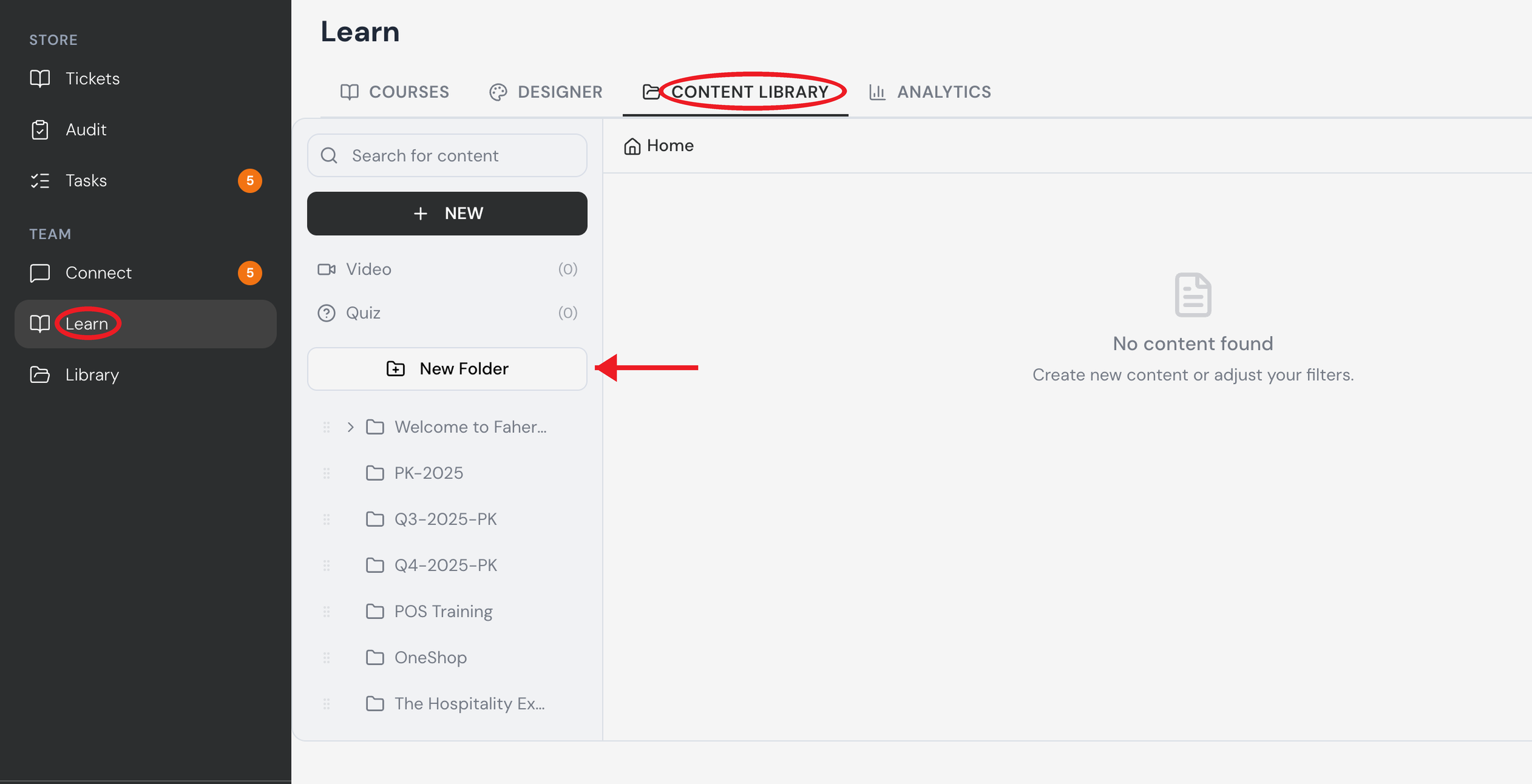
The Content Library is where you'll find and organize your training materials. To get there, select Learn from the sidebar, then click the Content Library tab at the top of the page.
Adding new content:
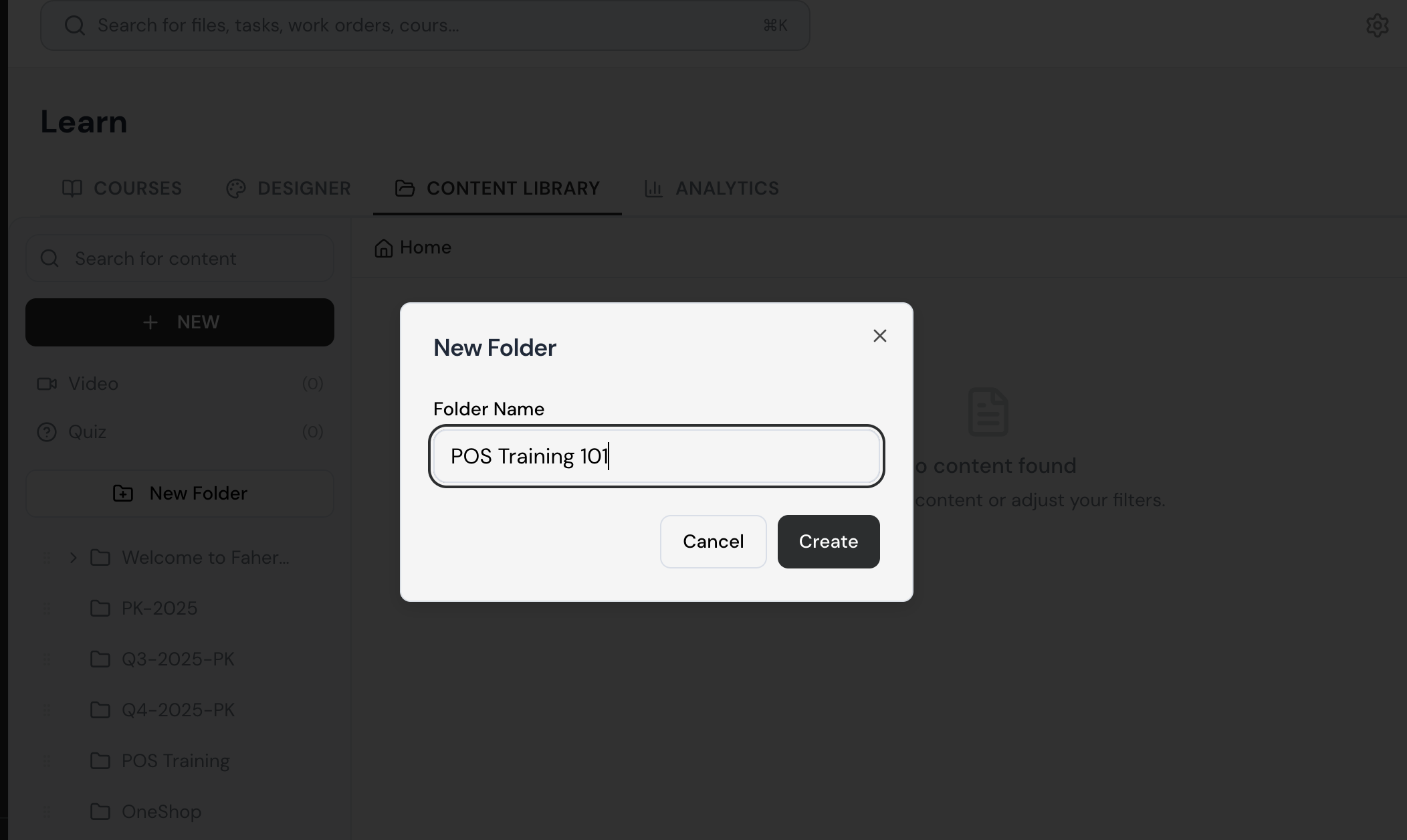
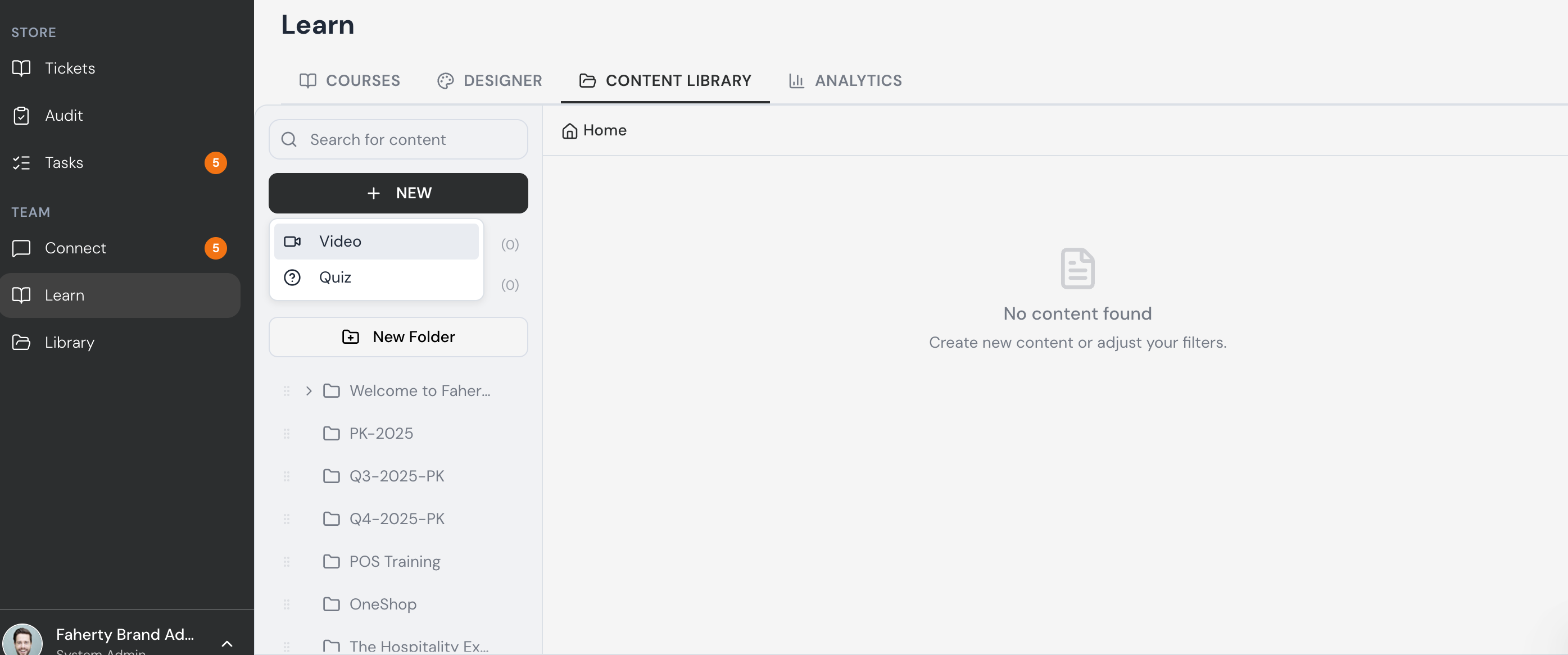
Click the + New button to add a Video or Quiz. If you'd like to keep things organized, select New Folder to create a new folder for grouping related materials — for example, by season, program, or topic.
Navigating Folders:
Your existing folders are listed on the left. Click any folder to open it and view its contents in the main panel. Folders can contain other folders, so you can nest content as needed to keep things tidy.
Once your content is organized here, it will be available to pull into your courses whenever you're building or updating a course in the Designer tab.
Video File(s) Upload:
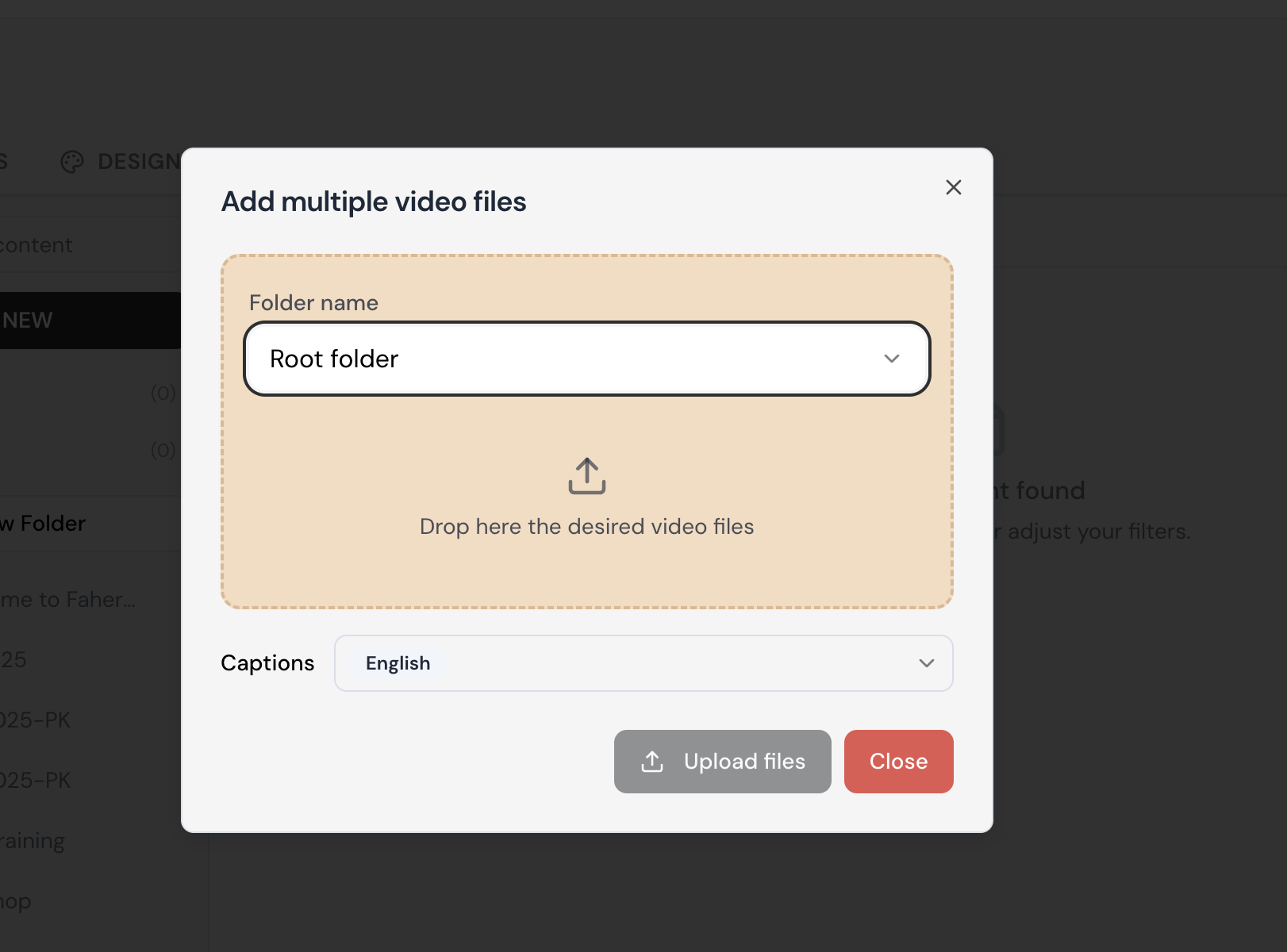
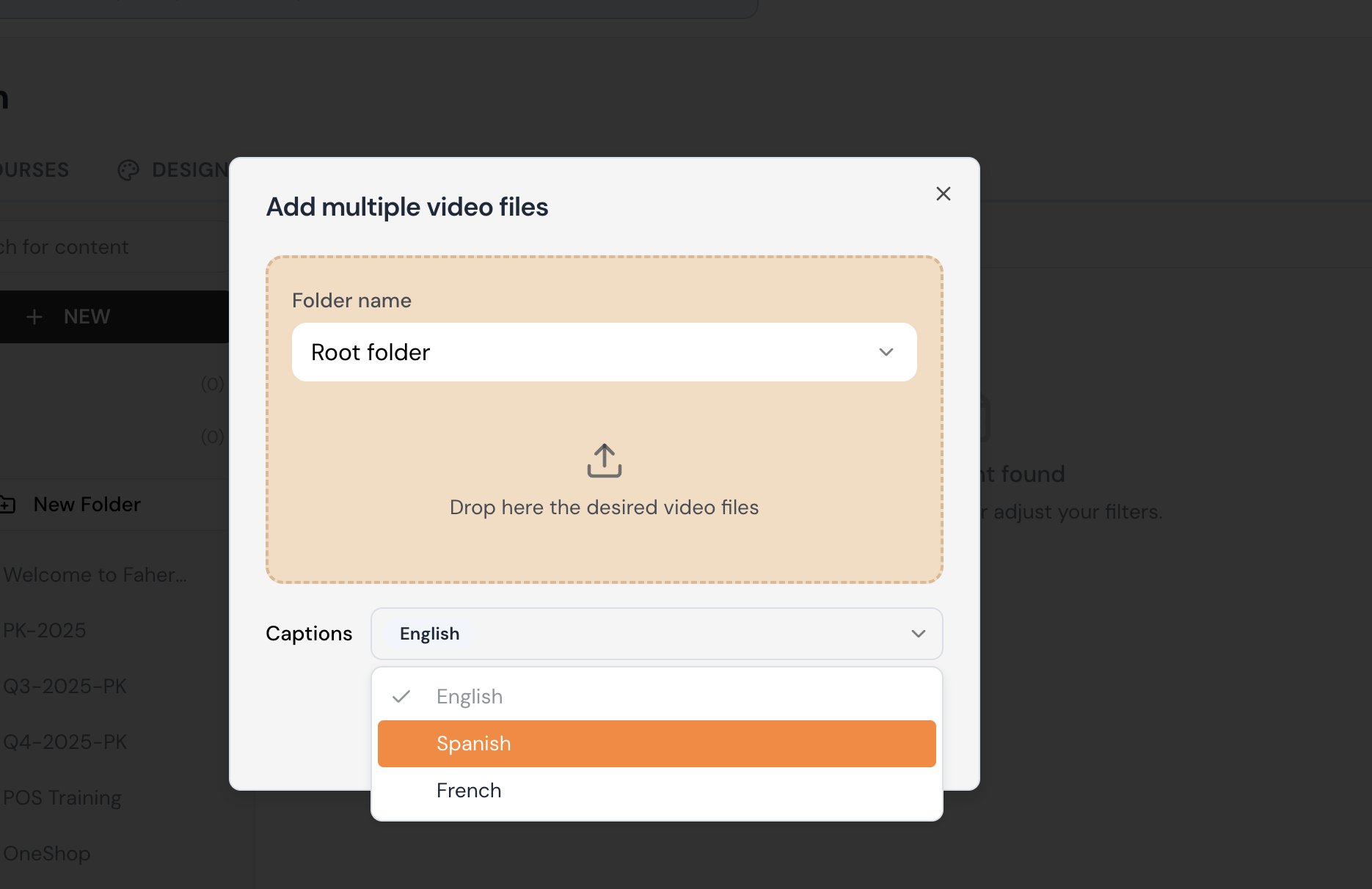
Selecting Video from the New menu opens the "Add multiple video files" window, where you can upload one or more videos at once.
Use the Folder name dropdown to choose where the videos will be saved (defaults to Root folder, but you can select any existing folder).
Drag and drop your video files into the dashed upload area, or click it to browse your device.
Use the Captions dropdown to select the caption language for your videos (defaults to English). Caption language is available in English, Spanish, and French.
Once your files are added, click Upload files to complete the upload, or Close to cancel.
Course Designer:
How to Add a New Course:
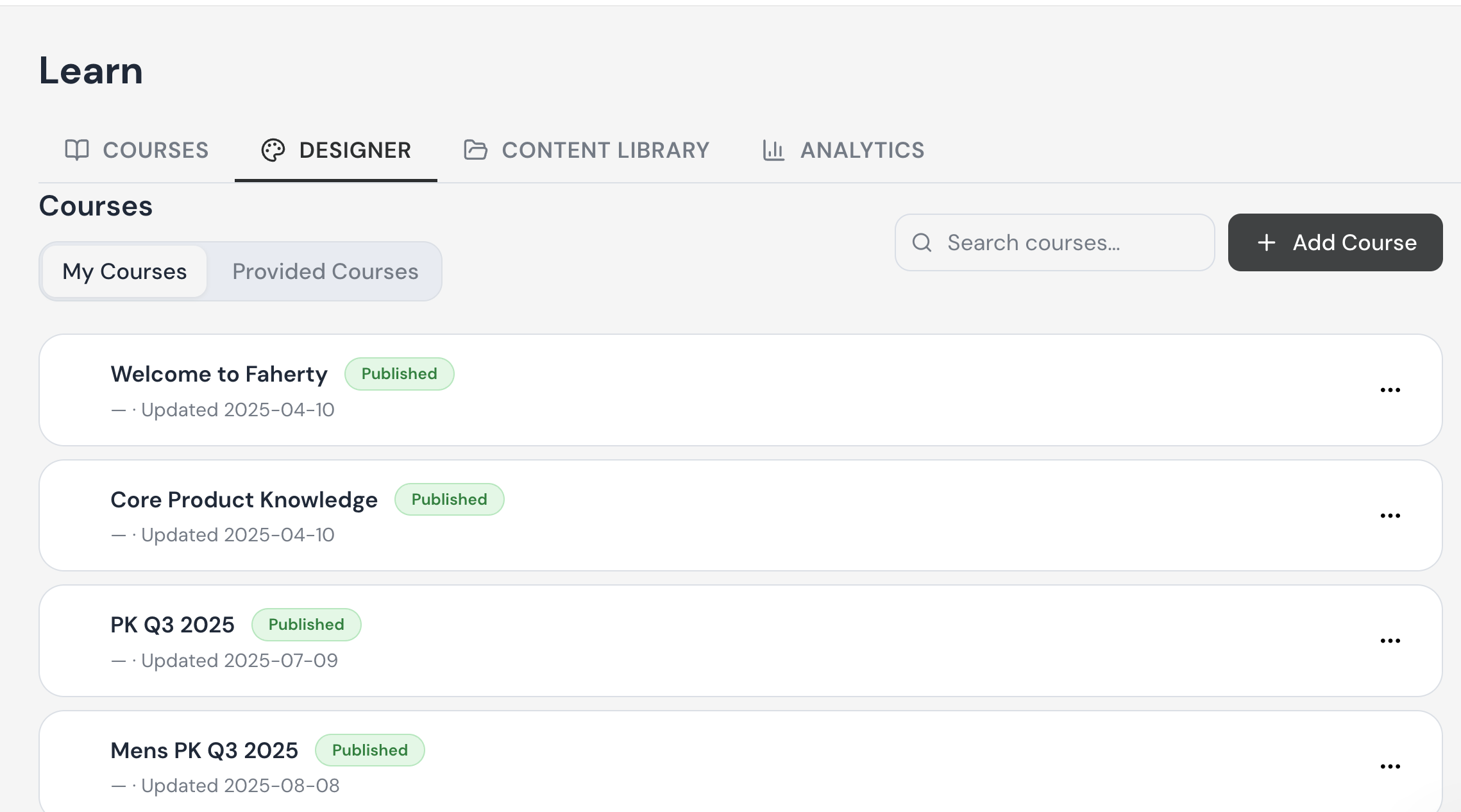
Select the Course Designer tab within the Learn Section.
Your tenant’s course list will appear, and you have the ability to drag and drop courses into the desired order which will be reflected on your users’ Learning Dashboard (filtered based on those users’ on their course permissions).
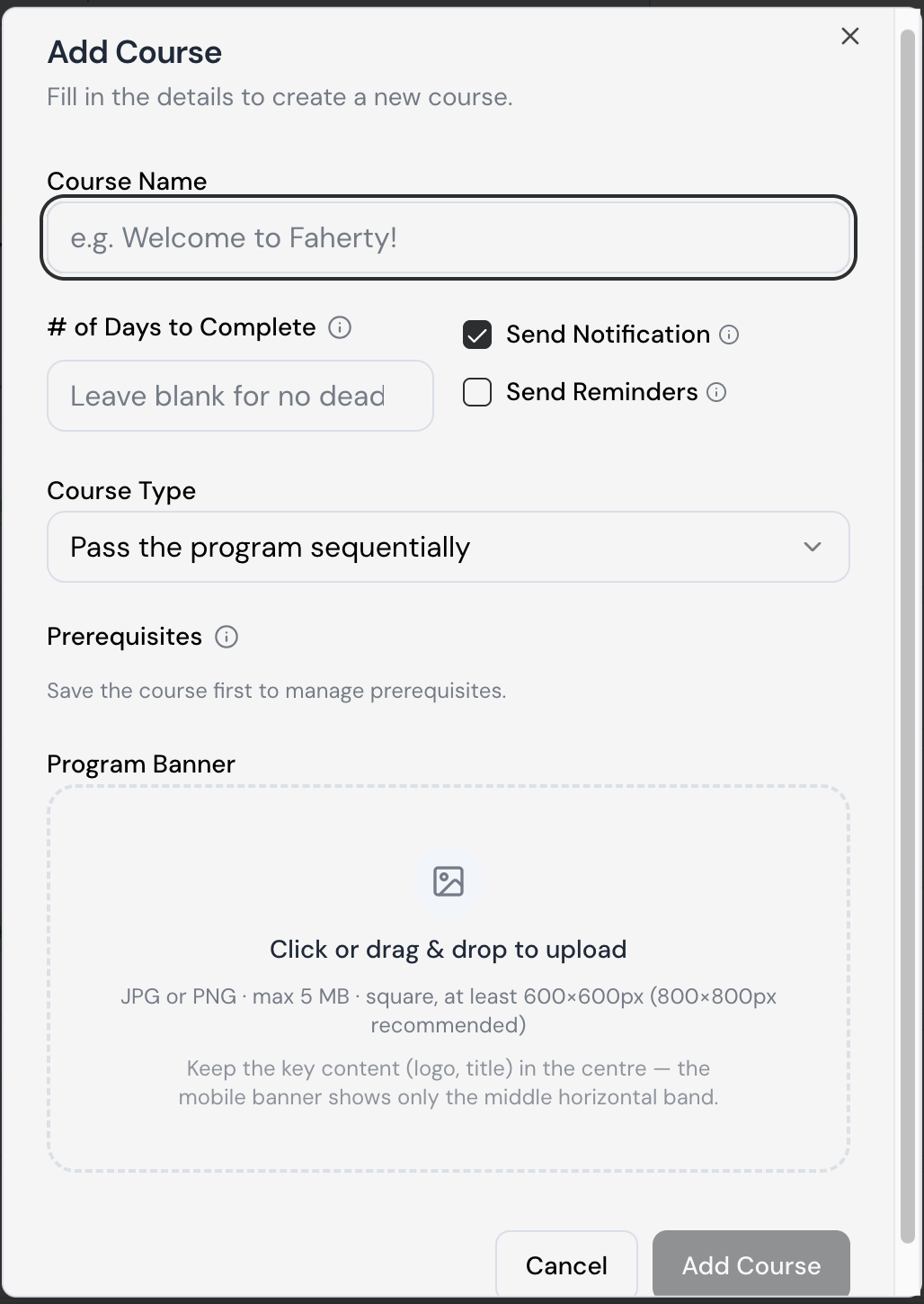
Select + Add Course from the Courses screen to open the Add Course modal.
Enter a Course Name that clearly identifies the course (e.g., "Welcome to Faherty!").
In # of Days to Complete, enter how many days learners have to finish the course, starting from their enrollment date. Leave this field blank if there's no deadline.
Check Send Notification if you want learners to be notified when they're enrolled in the course. Check Send Reminders if you also want learners to receive reminder notifications before the deadline.
Choose a Course Type from the dropdown. Selecting "Pass the program sequentially" requires learners to complete each unit in order before moving to the next.
Skip the Prerequisites section for now — this option only becomes available after you save the course for the first time.
Upload a Program Banner by clicking the upload area or dragging and dropping an image file. Use a JPG or PNG, square, at least 600×600px (800×800px recommended), no larger than 5 MB. Keep your logo and title centered, since the mobile version only displays the middle horizontal band of the image.
Select Add Course to save and create the course, or Cancel to discard it.
Accessing Course Options:
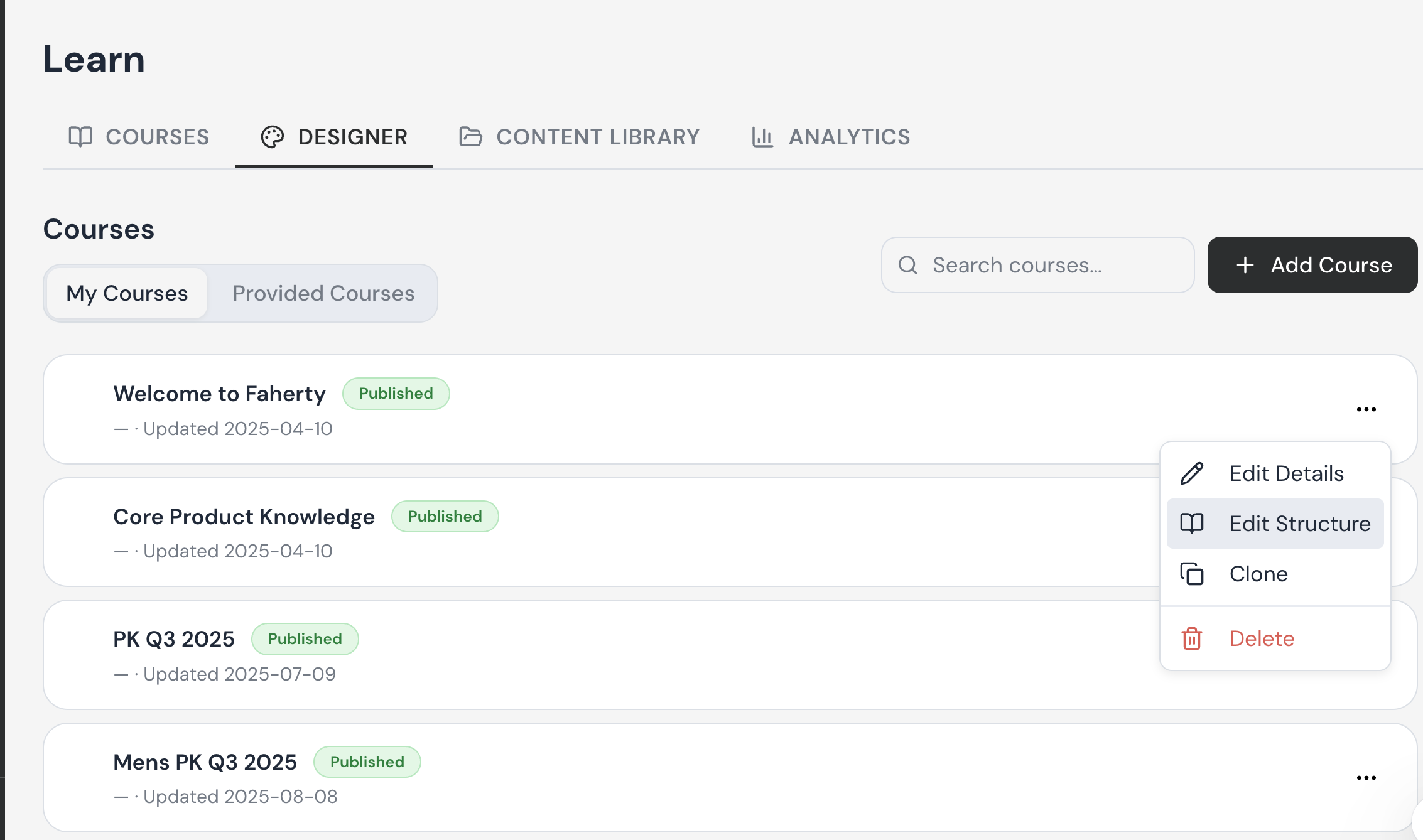
Select the three-dot (⋯) icon on the right side of any course card to open a menu of actions for that course.
Choose Edit Details to update the course's basic settings (name, deadline, notifications, course type, banner, etc.).
Choose Edit Structure to open and modify the course outline — adding, reordering, or removing units within the course.
Choose Clone to create a duplicate copy of the course as a starting point for a new one.
Choose Delete to permanently remove the course from the list. This action cannot be undone, so use it carefully.
Creating Course Outline in Designer:
Select the Course Name you would like to build the outline for and land on the course-builder screen.
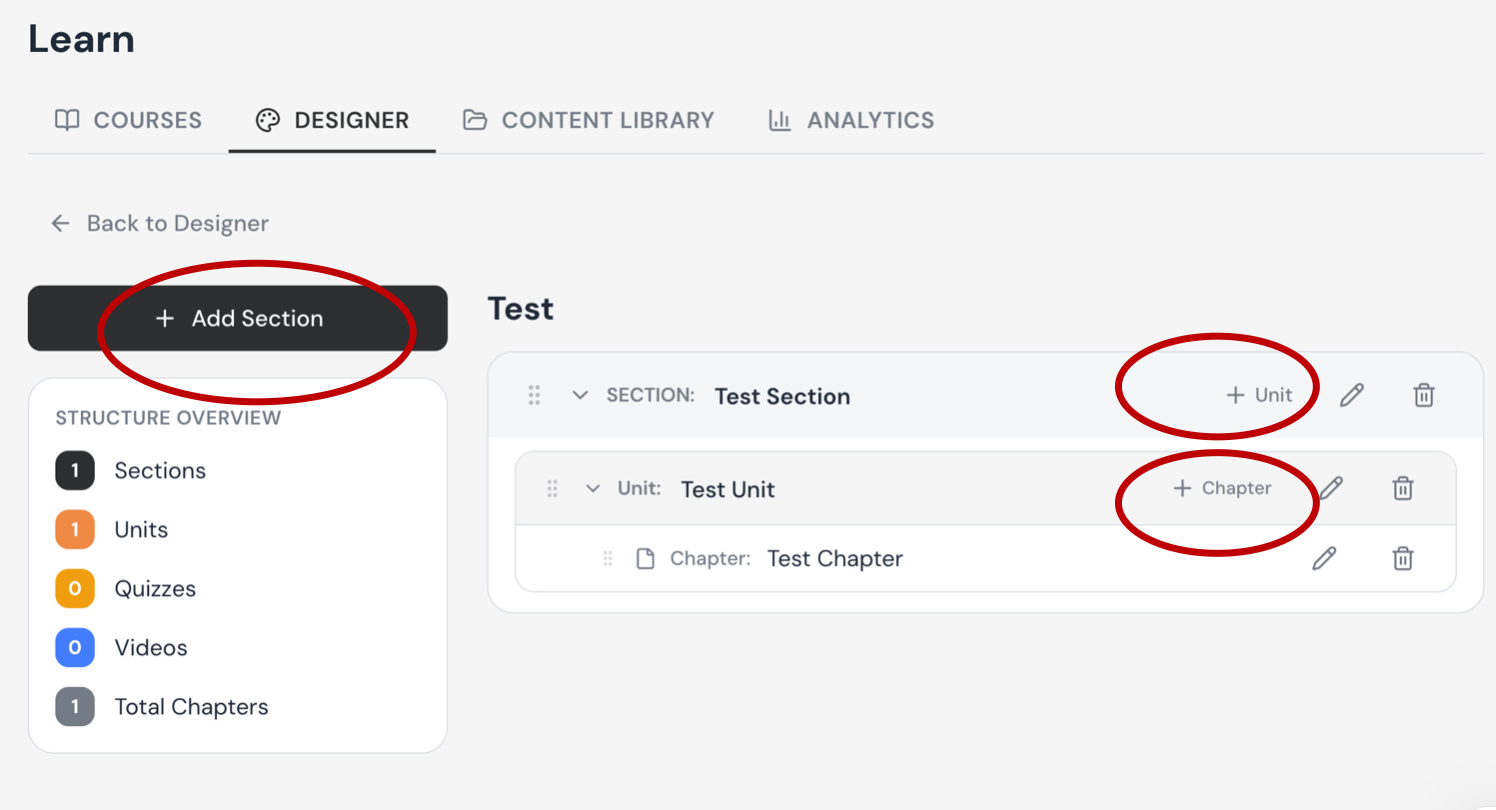
Select + Add Section to create the first section of the course. Until at least one section is added, the main panel shows an empty state: "No sections yet. Click 'Add Section' to start building
Section: Think of this as an overall theme for a course.
Unit: Think of this as a group of concepts or related content within a Section.
Chapter: Think of this as individual lessons or quizzes that relate to a Unit.
You must begin by Adding a Section.
To add a unit select “+ Unit”.
To add a chapter select “+ Chapter”, title it and select video or quiz from the Learning Content Library and select “Add”. (For each chapter content- either a quiz or video file needs to be added prior to clicking "save").
Repeat process as necessary to complete the course outline.
Page will automatically refresh and content will be added to the outline.
Editing the Course Outline
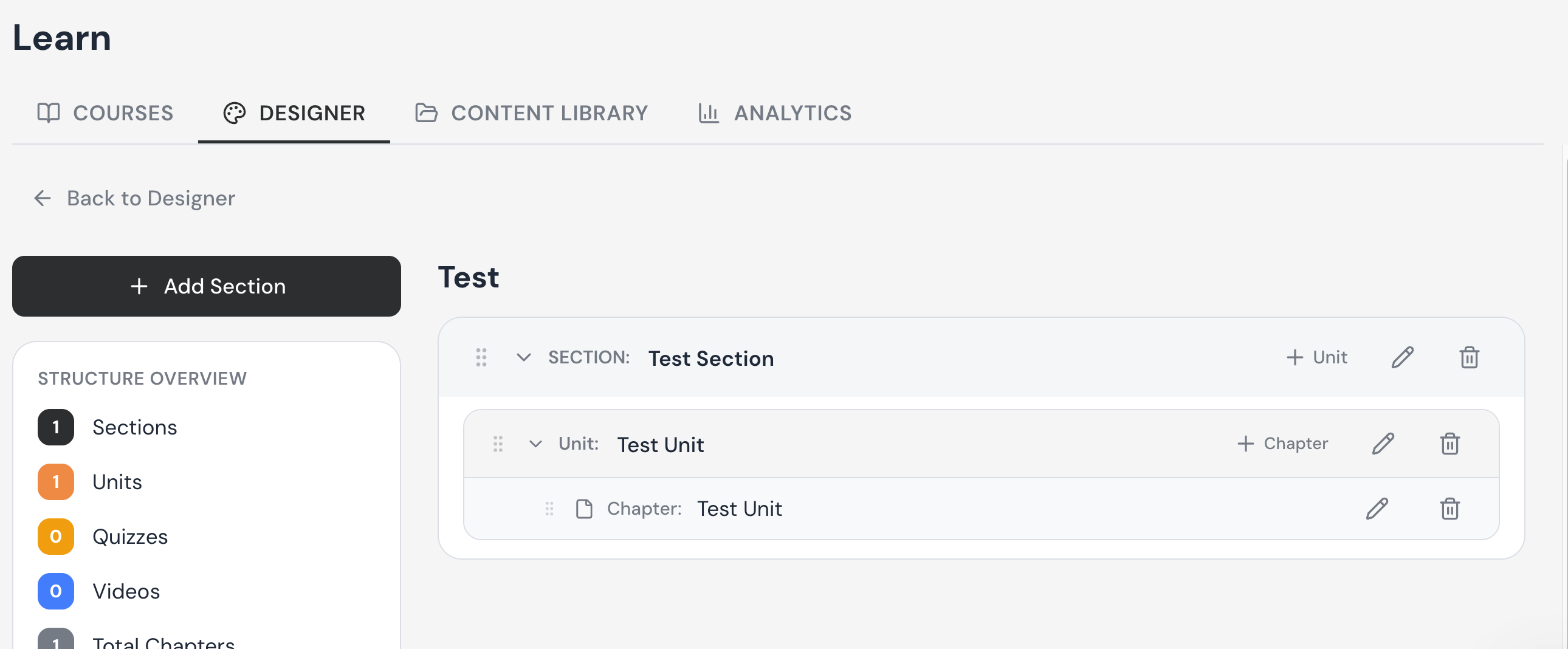
Feel free to rearrange the Sections, Units, & Chapters by selecting, dragging, and dropping the content groups to their relevant fields.
Feel free to add new sections, units, and chapters as necessary to the course outline. However:
If the course is already published, bear in mind that adding new chapters to the course outline can impact learning records among users that have already completed the course or course section.
Editing a pre-existing chapter by changing its source content, will not impact any learning records. It is best to only publish a course when you are confident in the course outline being finalized. Course chapter content can easily be replaced with no negative effect on learning records.
The same applies for editing pre-existing quizzes. Those changes are made live for all future learners with no impact to learning records.
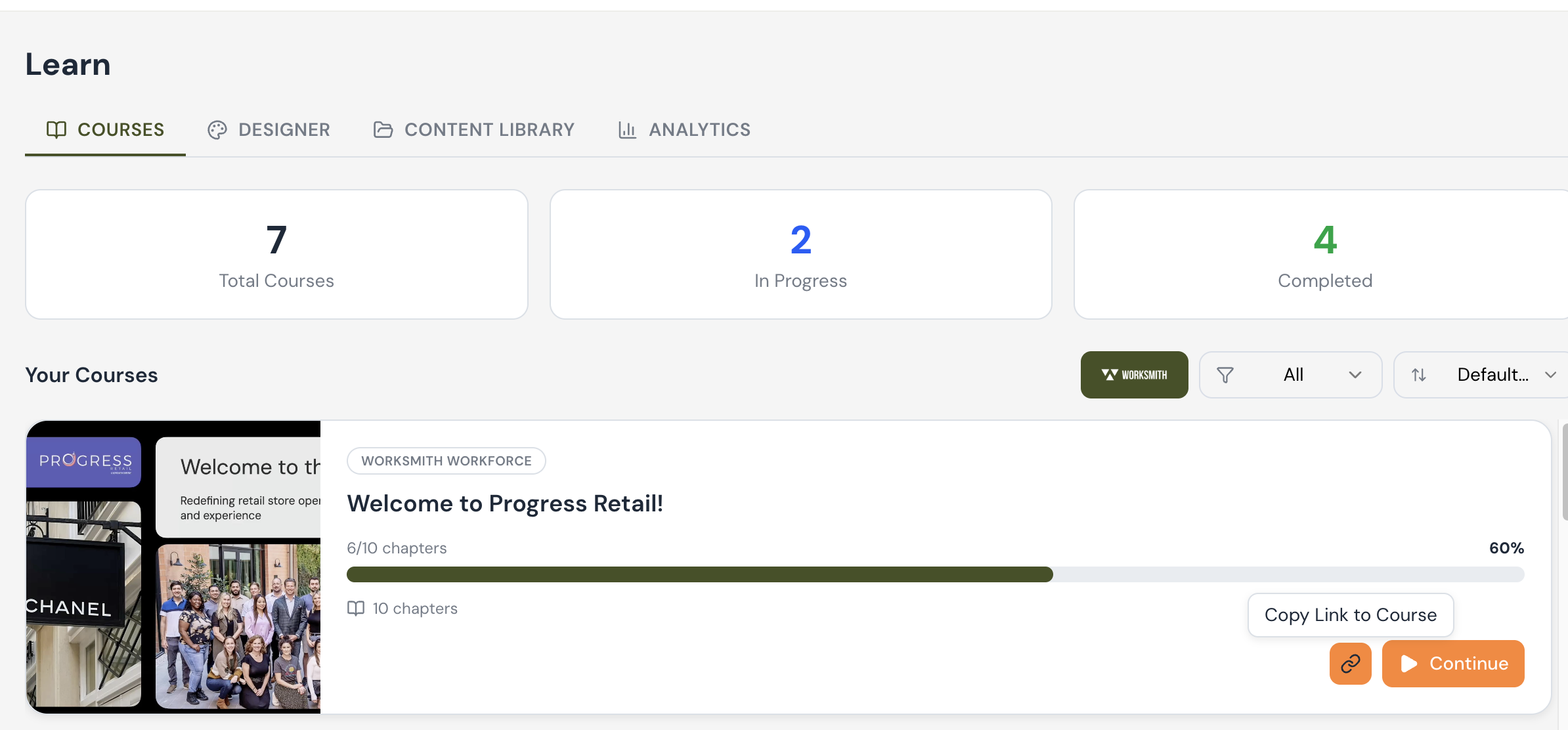
Copy a Link to a Course
Quickly share a direct link to a specific course through platforms like Connect, Teams, Slack, or email.
How it Works:
You can now copy a direct link to the learning room for any course.
This link ensures users land directly inside the correct learning environment (no extra navigation needed).
Steps to Copy the Link:
Locate the course you wish to share under "Courses".
Hover over the link at the bottom right corner next to the "Continue" button.
A tooltip will appear that says “Copy Link to Course” when you hover over the icon.
Clicking the icon will copy the course link to your clipboard.
You can then paste the link wherever you want to share it.
If someone clicks the link and they are already logged in, they will be taken directly to the course.
If they are not logged in, they will be prompted to log in first, and then automatically directed to the course.