Assigning Tasks by User or Role
Last updated: October 15, 2026
Worksmith Workforce task management supports assigning tasks directly to individual users or role groups — giving operations and field leaders a more targeted way to distribute work when store-level assignment isn't the right fit.
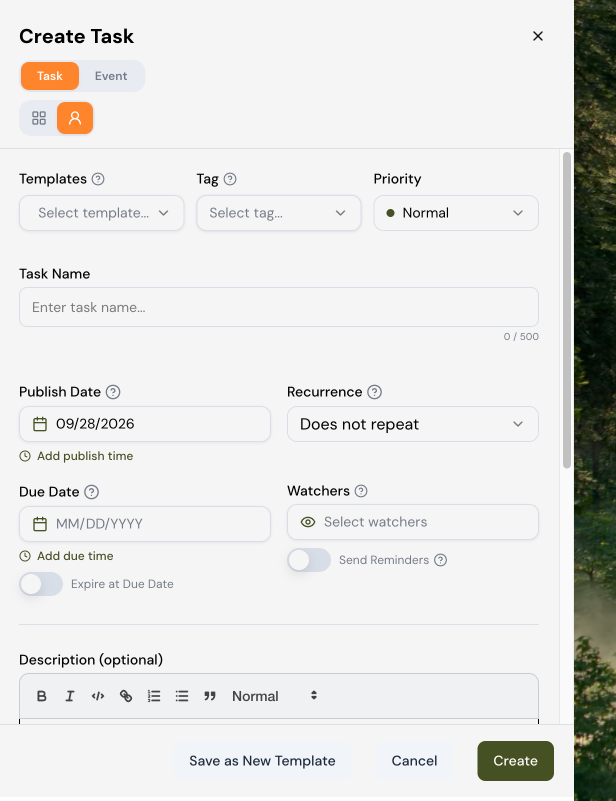
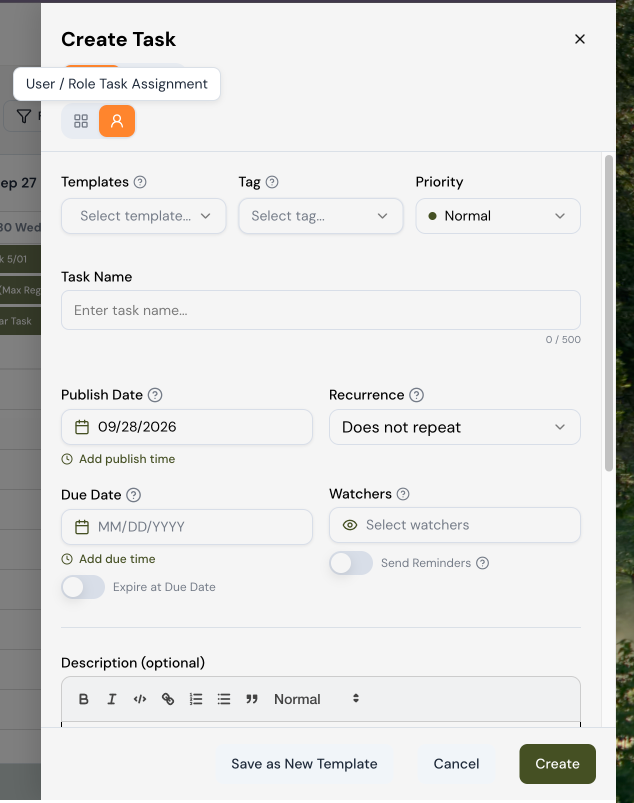
What Is a User Task?
A User Task is a task assigned to a specific person or role group, rather than to a store location. This is useful when work needs to be completed by a particular individual — whether for accountability, sensitivity, or role-specific reasons.
This is distinct from Store Tasks, which remain the recommended approach for most day-to-day retail task management.
When Should You Use User Tasks vs. Store Tasks?
Store Tasks are still the best fit for the majority of retail workflows. Because task completion at the store level is typically owned by a small set of leadership roles (Store Manager, Assistant Manager, Lead/Keyholder/Supervisor), assigning at the store level ensures work gets done even when individuals are out due to days off, sick time, or vacations.
User Tasks are best when the work is:
Individual-specific (only a certain person should complete it)
Sensitive in nature (you need a specific person to be accountable)
Role-targeted (you want to reach everyone in a particular role group)
Permissions:
No changes to permissions are required to start using User Tasks. User Tasks use the same Task Create/Delete permissions as Store Tasks — if your team already has those permissions, they're ready to go.
For assignees who haven't had task permissions before (for example, a Sales Associate receiving a User Task for the first time), no permission changes are needed either. User Tasks function as a My Task for the recipient, similar to how Course Due Date tasks work.
Who Can Assign User Tasks to Whom?
User Task assignment follows the same organizational hierarchy rules as Store Tasks. You can only assign tasks to users or role groups at or below your level in the hierarchy.
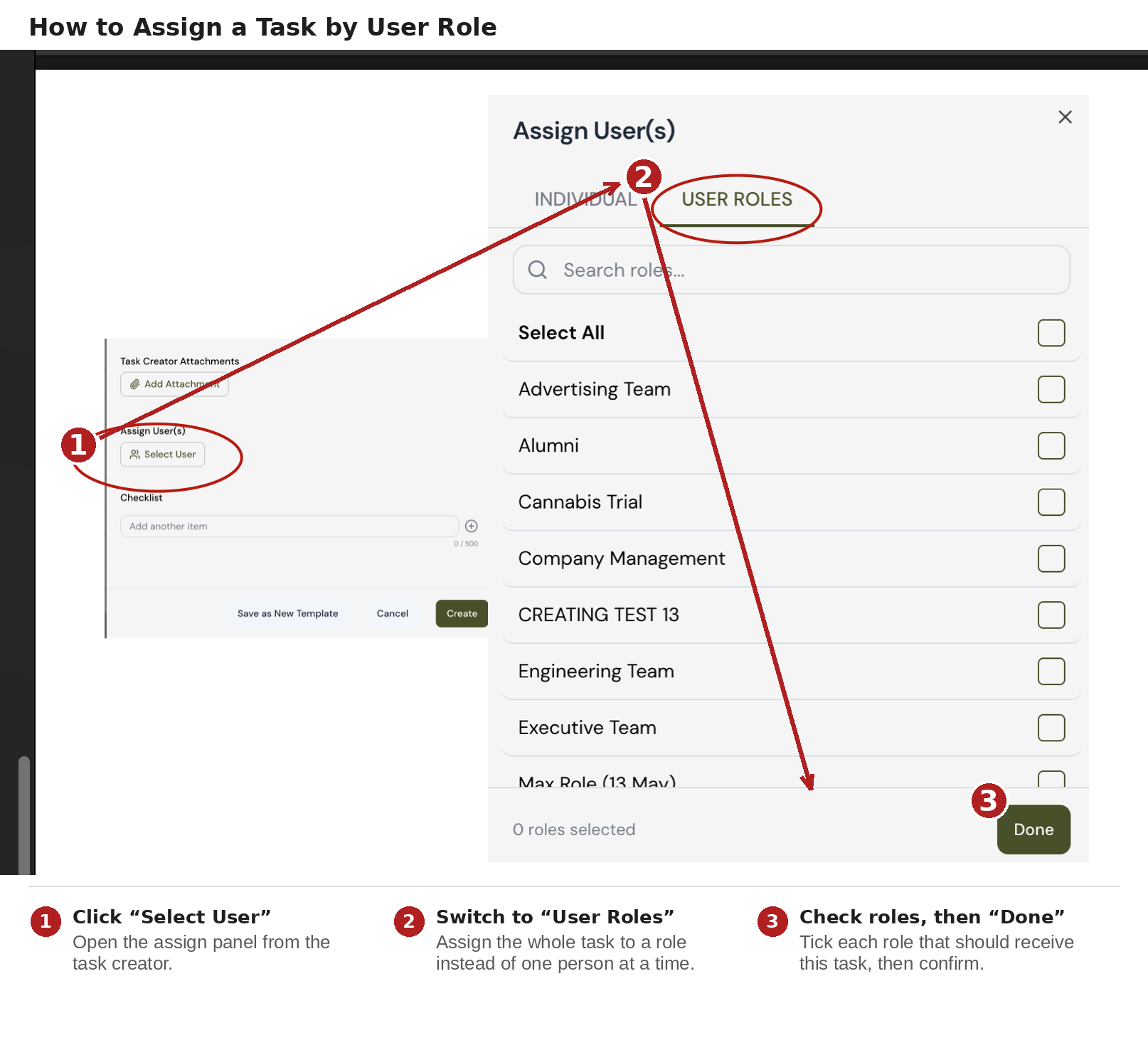
For example:
A Store Manager can assign a User Task to a Sales Associate at their location.
A Store Manager cannot assign a User Task to someone at Headquarters.
A Store Manager cannot assign a User Task to a user at a different store.
This ensures that task assignment stays within appropriate organizational boundaries.
How to Find User Tasks:
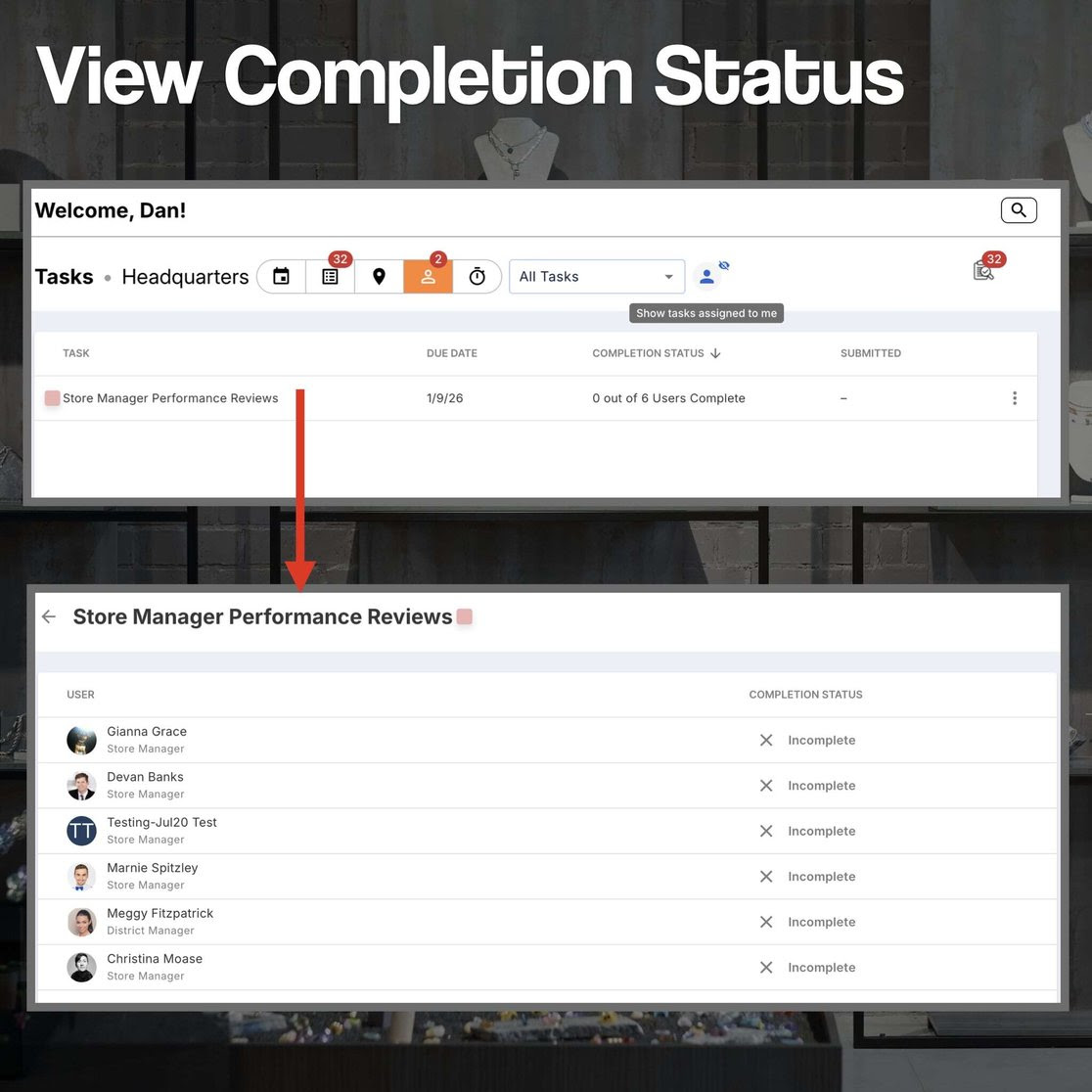
As an assignee: Navigate to Tasks → My Tasks to view all User Tasks assigned to you.
As the person who assigned the task: Select Assigned by Me (click upper right icon "The person-with-eye icon" toggles the "Show tasks assigned by me" and "Show tasks assigned to me" filter) within the Tasks section to see all tasks you've assigned to others and track their status.
Approvals & Submissions:
If a User Task requires approval upon completion, submissions are automatically routed to the Tasks to Review section — the same place you review Store Task submissions. You can also access individual submissions directly through the assignment tree by selecting the task.
Store Tasks: User Tasks:
Best for: | Day to Day Operations | Individual Specific or sensitive work |
Assigned to: | A Store Location | A Specific User or Role Group |
Covers absences/days off: | Yes | No-tied to the individual |
Permissions Required: | Task Create/Delete | Same-no changes needed |
Where to Find: | Tasks Section | Tasks → My Tasks / Assigned by Me |