Task Publish & Due Date Times
Last updated: October 15, 2026
Tasks now support specific publish and due date times in addition to dates. When scheduling work, a time of day can be specified for when a task should publish to users and when it is due. This feature is optional. Existing tasks are not affected, and tasks without defined times follow the same default logic as before.
Publish time controls when a task becomes visible to assignees.
Due time controls when a task is considered overdue.
Publish and due times are optional; tasks without times behave exactly as they did previously.
Times are honored alongside the existing date logic; the existing default logic continues to apply when times are not set.
How to Set a Publish Time
Open the task to be scheduled (or create a new task).
Navigate to the scheduling section of the task.
Set the publish date as usual.
In the publish time field, set the desired time of day for the task to become visible to assignees.
Save the task.
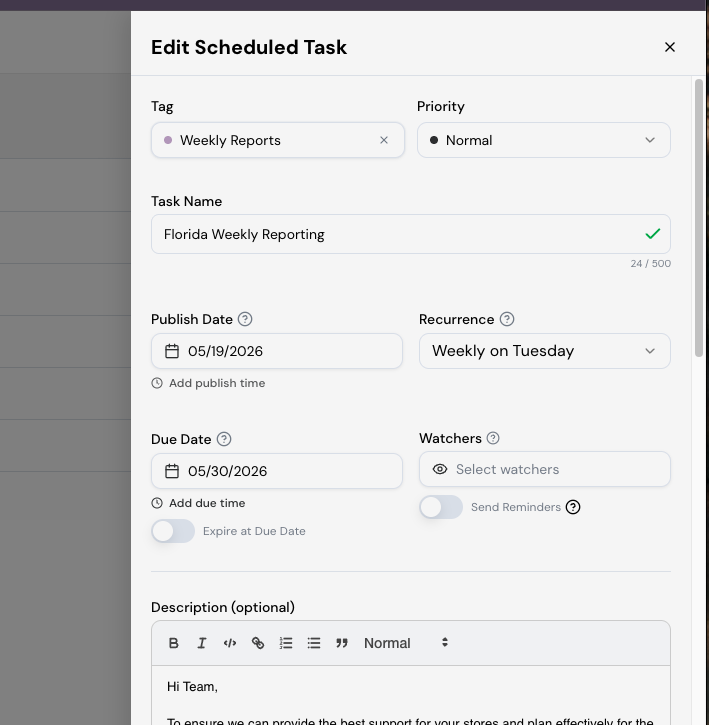
How to Set a Due Time
Open the task to be scheduled (or create a new task).
Navigate to the scheduling section of the task.
Set the due date as usual.
In the due time field, set the desired time of day by which the task should be completed.
Save the task.
Best Practices
Use publish times to align tasks with opening procedures, shift changes, or peak periods.
Use due times to align tasks with end-of-shift or end-of-day expectations rather than relying on the end of the calendar day.
Communicate the use of publish and due times to store leadership so expectations are understood.
Leave publish and due times blank for tasks where date-only scheduling is sufficient — existing default behavior is preserved.
Times are optional, tasks scheduled without specific times follow the same default behavior as before.