Additional Task Functions
Last updated: October 15, 2026
Task Calendar

Tasks can be accessed directly by clicking on the listed entry on the calendar.
The Calendar can be viewed by Month, Week, or Day by selecting the choices in the top right of the calendar.
The Calendar can be filtered by:
Task Status: All Tasks, Incomplete, Overdue, Completed
Task Tag (as shown): Customizable categories of tasks
Location: (Region, District, or Store)
Task Creator: The individual that created the task.
How Filters Work
Filters only affect:
How tasks are displayed
Which tasks appear in a given view
Filters do not:
Change who receives task notifications
Override role-based notification settings
Calendar Templates & Events
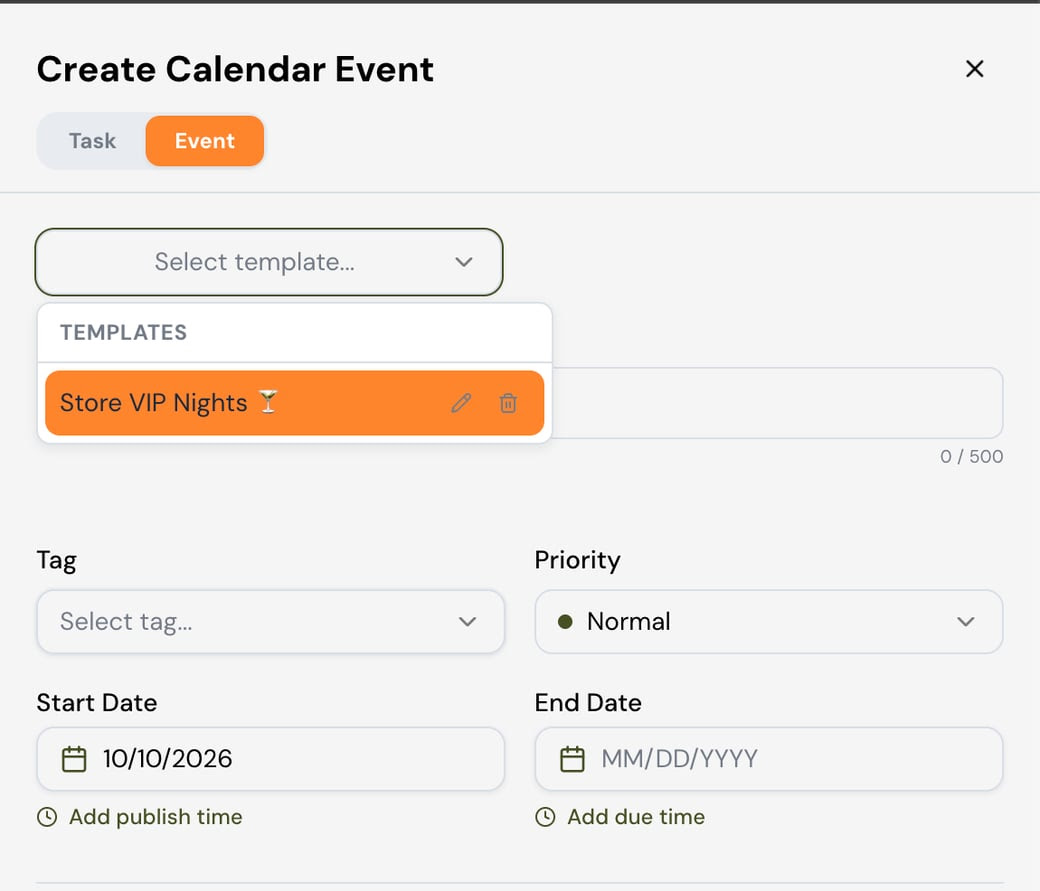
If you run the same kind of event again and again — a VIP shopping evening, a marketing activation, a trunk show — you no longer have to rebuild it from scratch each time. Three new options:
Save as a template: Save an event as a template available across your whole tenant, then pick it from the dropdown the next time you create a similar event.
Clone an event: Duplicate an existing event directly from the calendar menu.
Set recurrence: Set an event to repeat on a schedule so it’s created automatically going forward.
Task List


Tasks can be accessed by selecting the Parent Task (e.g. End of Month Visuals: All Stores) which will open up the location tree based on the scope of the task assignment. As the example task is assigned to twelve (12) stores, each store’s instance of that task is referred to as a Child Task.
Additional Task Status filters in Task List view include: Expired, Submitted, Submitted Overdue, & Completed Overdue.
All available filters from Task Calendar view also exist in the Task List view.
Parent Task Additional Options

Additional Options: At the right of the task list table there are three dots, and when selected a pop-up appears with additional options:
View: Opens the task, the same as clicking on task name in the Task column.
Edit: Opens the slide-out modal, enabling you to edit the Parent Task attributes (e.g. Due Date)
Delete: Permanently deletes the task. Should you wish to delete an individual store’s instance of that task, click View, and delete the Child Task from the list.
Clone: Duplicates the task by auto-filling the task creation form with the same details. It does not publish until “Create” is pressed.
Gallery (as pictured below): Creates a singular gallery of view of all submitted media, organized by store for the Parent Task.
Review: Activates the slide-out modal for reviewing submitted Child Tasks of the Parent Task.

Task Location View

The Task Location view is critical to measure the overall compliance of task execution across your fleet of stores. The locations that will be visible, depend on your user location, and where that user location sits in your tenant’s location hierarchy. For example, a Headquarters user would see all stores, but a District Manager will only see the stores falling under that District location.
In addition to Date Selection, the Task Tag Filters are available to run categorical task reporting. For example: selecting the current month-to-date and a “Visual Merchandising” task tag will provide you with visual merchandising execution and compliance across your stores.
Download Store Tasks: In addition to using Task Tag filters, task data visible by location can also be downloaded as a CSV file.

My Tasks

Currently, My Tasks display Course Due Dates as an automated integration between Worksmith Workforce’s Learning & Analytics components.
In the future, Worksmith Workforce will automate other tasks from third-party systems and hardware, in addition to enabling native Worksmith Workforce tasks to be assigned to individual users.
Scheduled Tasks

Tasks that are either scheduled, or scheduled with recurrence will appear in the Scheduled Task list.
To edit a scheduled task, you can click on the task name, or select “Edit” from the three dots button. (the edits made to those scheduled tasks will only show for the future, not the past).
To stop a scheduled task, you can select “Stop” from the three dots button.
To schedule a task for the future, create the task and make sure to select a future date.
Task Template

Task Templates can be created by clicking on “Create New Task”.
Task Templates can also be saved for future use.

Select or edit a saved template to pre-fill task creation form.


Once the entire form is filled in, click “Save as New Template”.
This will then save as a new template in your templates library.