Creating & Approving Tasks
Last updated: October 15, 2026
Based on our research, at least 50% of emails to stores are in fact store tasks. But when emails are sent, it’s incredibly inefficient to track what store has done what, when, and how well it has been completed to the expected standard.
Important: Task creation and task metric visibility are based on the user’s location within the location hierarchy. Please ensure a user with Task: Create/Delete permissions is associated with the correct location to assign and review task submissions and metrics.

Tasks can be created at the Calendar layer of Tasks or the List View, by the bottom right “Create” option as pictured above.
Creating a Task:
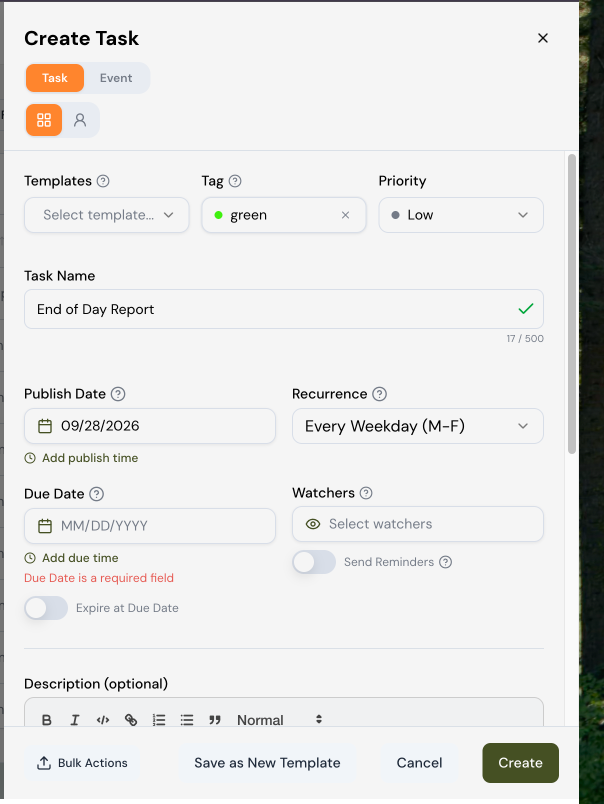
When you're ready to create a new task, click Create Task to open the task builder. At the top, you'll see two tabs — Task and Event — so make sure Task is selected (it'll be highlighted in orange) before you continue.
From here, fill in the details of your task:
Templates — If your team has a saved template for this type of task, select it from the dropdown to auto-fill the fields below. If not, you can skip this and build the task from scratch.
Tag — Use this to categorize your task with a color-coded label (in this example, the tag is set to "green" , all green tags are associated with end of day reports).
Tags make it easier to filter and find tasks later.
Priority — Set how urgent the task is — Low, Medium, or High — so your team knows what to tackle first.
Task Name — Give your task a clear, descriptive name (for example, "End of Day Report"). You have up to 500 characters, and a green checkmark will appear once your entry is valid.
Publish Date — This is the date the task becomes visible to whoever it's assigned to. You can also click Add publish time if you want it to appear at a specific time of day, rather than just at the start of the date.
Recurrence — If this task needs to repeat, choose how often here — for example, "Every Weekday (M–F)" for a daily task like an end-of-day report.
Due Date — This is when the task needs to be completed by, and it's a required field — you'll see a red note reminding you if it's left blank. Like the publish date, you can click Add due time for a specific cutoff time. There's also a toggle for Expire at Due Date, which you can turn on if the task should no longer be actionable once the due date passes.
Note- Every task requires a due date. A task is considered on-time if it is completed prior to 11:59PM (local store time) on the Due Date.
Watchers — To be considered a Watcher, a user must have task permissions and their location must reside above the assigned stores in the location hierarchy. Watchers receive Task Submitted notifications and therefore have the ability to support the Task Creator in approve/decline workflows. If the task does not require approval, there is little benefit in setting Watchers.
Turn on Send Reminders if you'd like watchers to get notified as the due date approaches.
Expiration: Most recurring retail tasks should have expiration activated. For example: if a store fails to complete Wednesday’s daily recurring cleaning task, there is no value in having them complete that on Thursday, as Thursday will have its own task. Expiration moves these tasks to the “Expired” filter, and keeps the store (and Task Creators) “Incomplete” filter clean.
Reminders: Automate reminder notifications to store users with task permissions. Reminder notifications are sent 12 hours and 6 hours before the task is due. For standard tasks, this is 12:00PM local store time and 6:00PM local store time. If the task is completed at any point in time, the store teams will not receive the following reminder notification
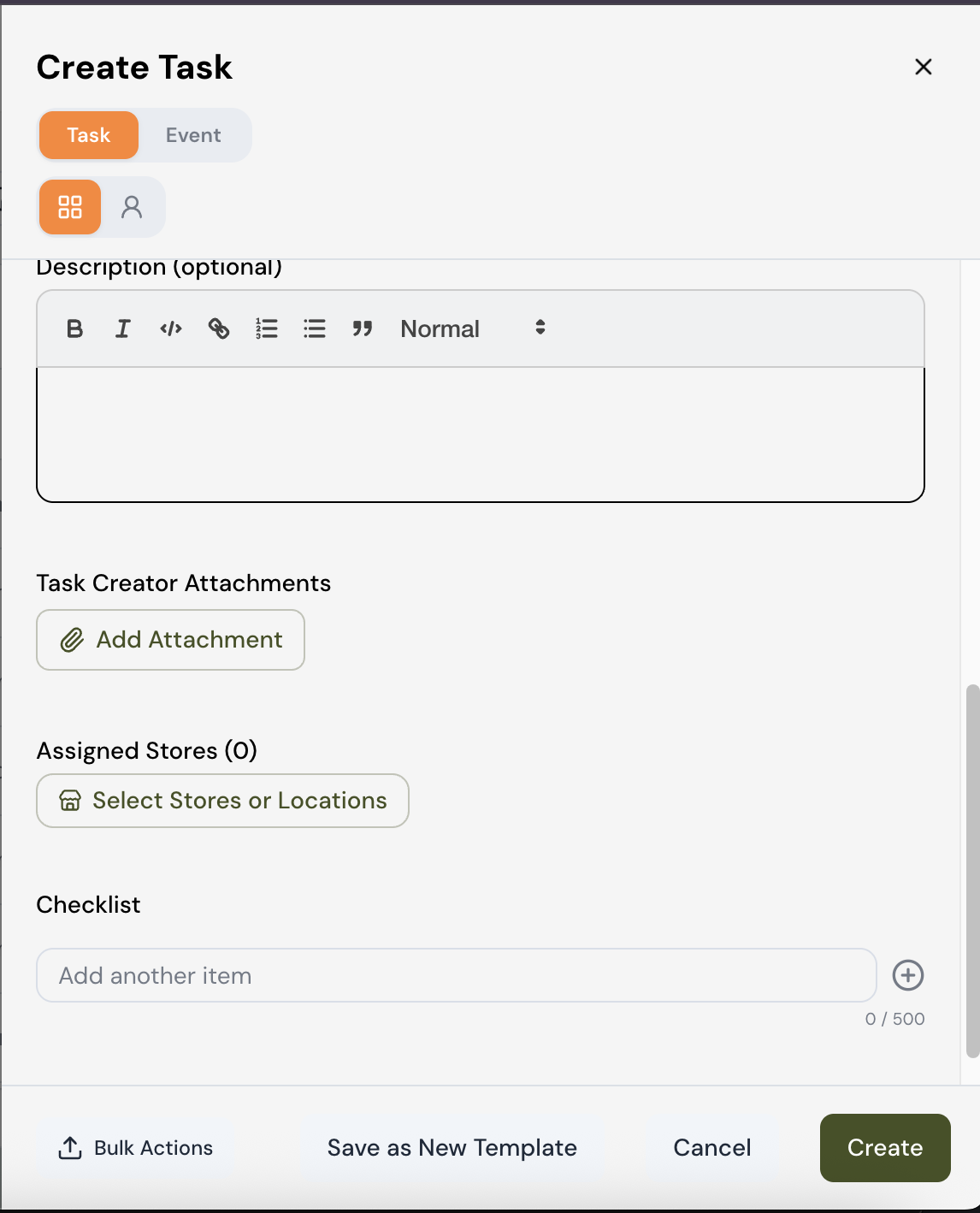
Description: This field provides expanded context and direction can be provided to the task recipients. Full rich text formatting is available, and Task Creators can link to external content via hyperlink. This is very useful for related task assets such as Google Sheets, SharePoint/Excel docs, Microsoft/Google Forms etc that require the task recipient(s) to perform some degree of data entry.
B — bold your text
I — italicize your text
</> — format text as code (handy for pasting in a link, command, or system text exactly as-is)
The link icon — turn selected text into a clickable hyperlink
The numbered list icon — create a step-by-step ordered list
The bulleted list icon — create an unordered list
The quotation mark icon — format a line as a block quote
The Normal dropdown — switch between text styles, such as normal paragraph text or different heading sizes
This field is optional, so feel free to leave it blank if the task name and other details already say everything that's needed.
Task Creator Attachments: If you need to attach a file — a photo, PDF, spreadsheet, or reference document — click Add Attachment. This attaches the file to the task itself so anyone assigned to it can open and reference it.
Attachments: If the task asset does not require data entry, then it is of greater benefit to the task recipient(s) to view this as an attachment natively in Worksmith Workforce. Attach the document (e.g. a visual directive or guide) as prompted in the attachment slide out.
Assigned Stores: Click Select Stores or Locations to choose which store or stores this task applies to. The number in parentheses next to "Assigned Stores" updates to reflect how many you've selected, so you can quickly confirm you've picked the right ones before moving on.
Checklist: Define the specific actions or steps the store teams are required to take in order to complete the task. You’ll notice two icons in addition to the “X” which is for deleting the checklist item. When selected, the overall task is marked as “Requires Approval” meaning that once submitted, the task returns to the Task Creator and any defined Watchers for approval.
Paperclip Icon: As pictured above, when selected the checklist item requires a file submission for approval (e.g. a photo).
Text Lines Icon: When selected, the checklist item requires a written response (e.g. a SKU, a short note, etc.)
From here, you can either “Save as New Template” or “Create” the task. The task will be published or scheduled according to the defined attributes.
Task Management: Task Approve/Decline

Tasks that require approval must be submitted to enter the approve/decline workflow. The easiest way to view these tasks is on the Task List view, by selecting the “Review” button in the top right corner of the screen.
A few things to consider:
As pictured above, you can filter the number of tasks to review by selecting a task tag, or filtering by the task creator.
Most retailers have many different types of tasks being created by different people (e.g. Human Resources, Marketing, or Retail Operations), and a particular individual may only want to review the tasks that pertain to their business function. Filtering first is a great way to achieve this so that you only review the tasks you want to see, as opposed to cycling through all submitted tasks.

Upon clicking the Tasks to Review, the task review modal slides out, and will demonstrate task checklist media or task checklist text submissions.
Clicking the media expands the size, and clicking the cloud icon enables the download of the media.
With text submissions, there is the ability to copy and paste the entry to your clipboard.
If the task appears to be completed to standard, selecting Approve will mark the task status as Complete.
If the task does not appear to be to standard, you can Decline the task. There is a requirement to provide a decline note or reason which will be provided to the store. The task status will update to Declined.
Should you wish to leave a comment on the task, you can click the “Link” button pictured above to the left of the blue Task Tag.
Then scroll down to the Conversation section of the store task, as pictured below.

For more detailed information, please watch this end-to-end task execution walkthrough video.