Task Gallery Features
Last updated: October 15, 2026
Download all photo submissions for a task in one click:
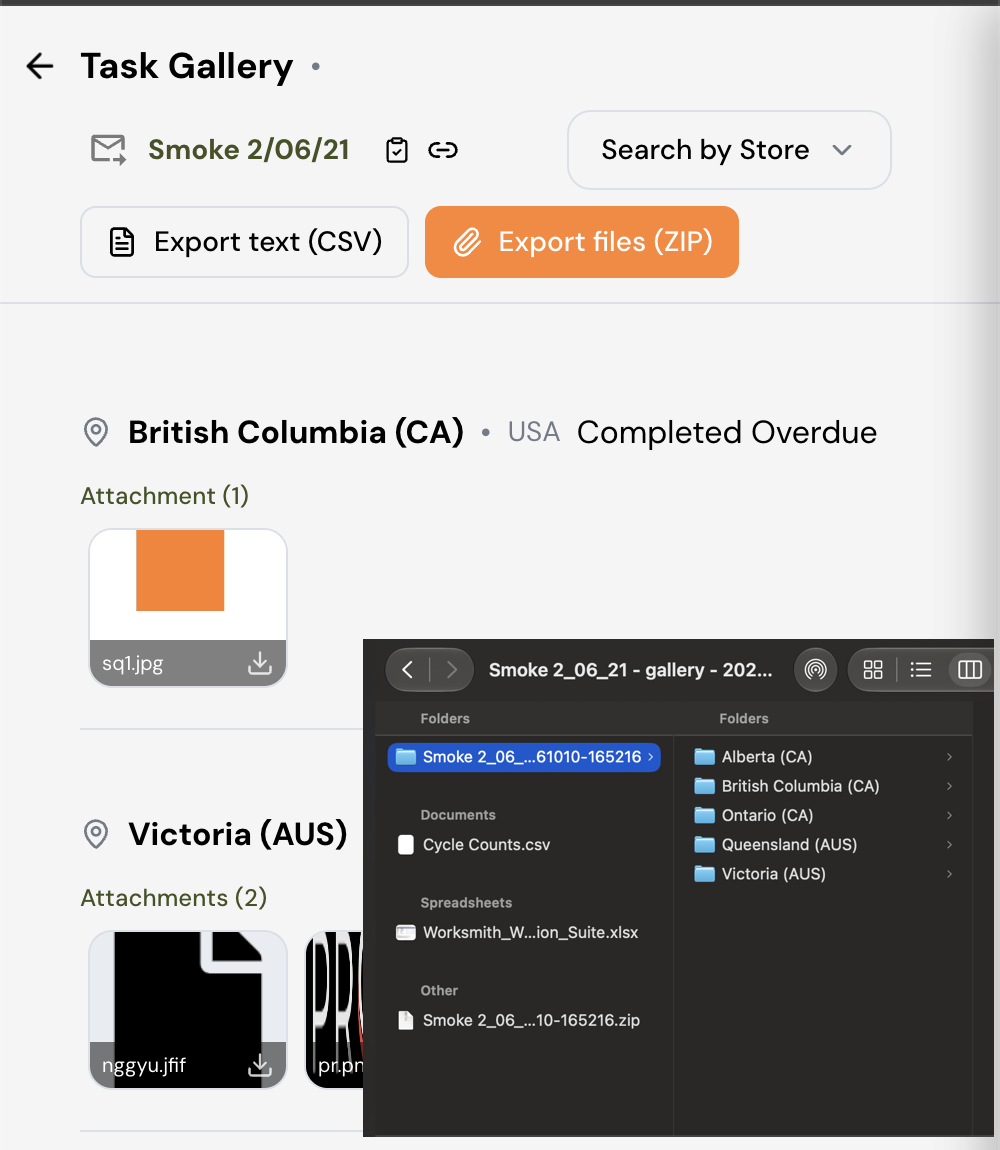
If you send a task out to a lot of stores and ask for a photo, you used to have to open each store’s submission one at a time to collect them. Now you can download every photo submitted for a task as a single, organized file.
How to use it:
Open the task you want photos from.
Go to the Gallery view.
Select the download option to export all photo submissions at once.
Your download is organized by store, so it’s ready to hand off to a brand partner, a vendor, or anyone who needs proof the work was completed.
Export Checklist Answers to a CSV
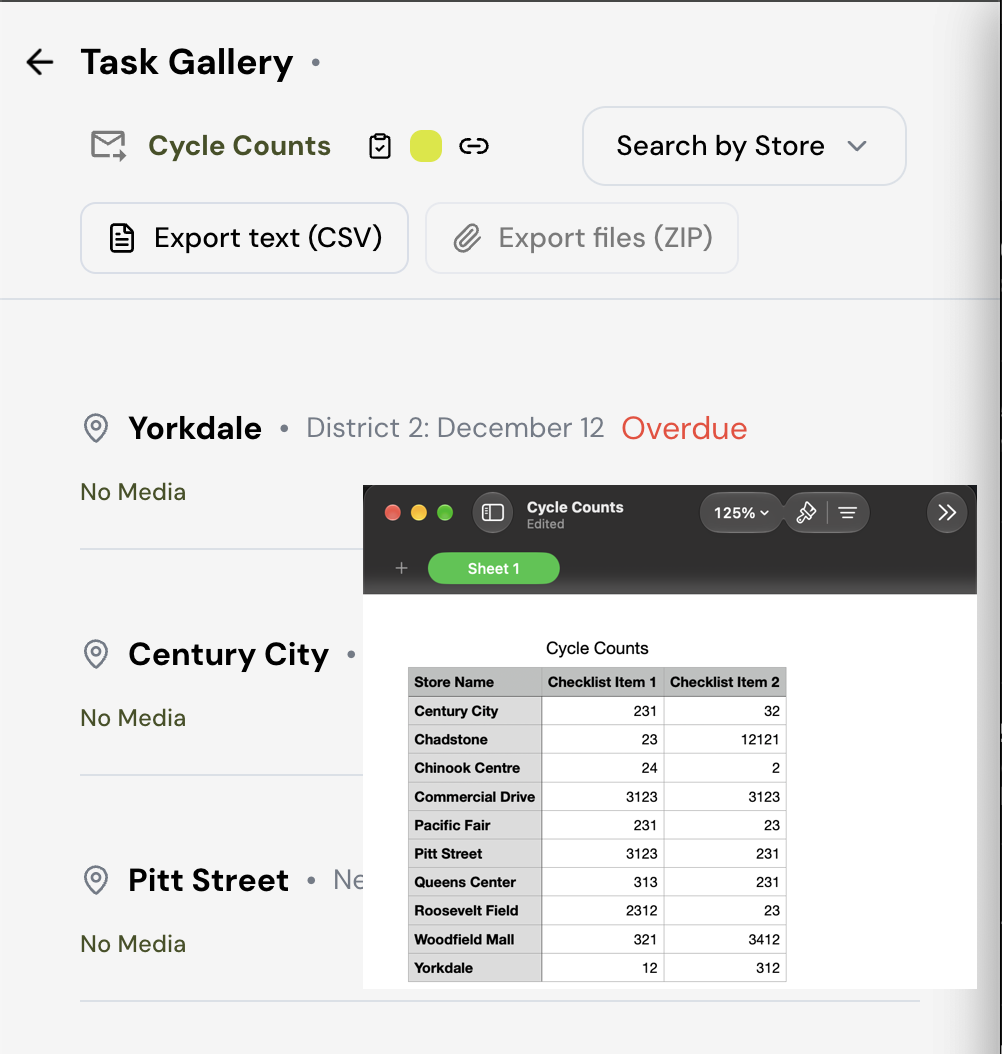
For tasks that ask a store to type something — a count, a serial number, a note on what they found — you can now pull every answer into one spreadsheet instead of opening submissions one at a time.
How to Use it:
Open the task’s Gallery view (the same place the photo download lives).
Select the CSV export option.
Open the file: each row is a store, and each column is a checklist item.
This makes it easy to sort and filter — for example, to quickly find just the stores whose answers still need a follow-up.